The Calendario Guide
Every feature of Calendario, the Chrome extension that puts Google Calendar, Outlook and Zoom in one popup — step by step, with screenshots and short clips.
- 1Getting started with CalendarioInstall the extension, connect your first calendar and learn your way around the popup — your whole day, one click from any tab.3 min read
- 2Connect Google, Outlook and Zoom — and more than one of eachAdd every calendar account you use, choose which of their calendars show up, and keep everything in sync.3 min read
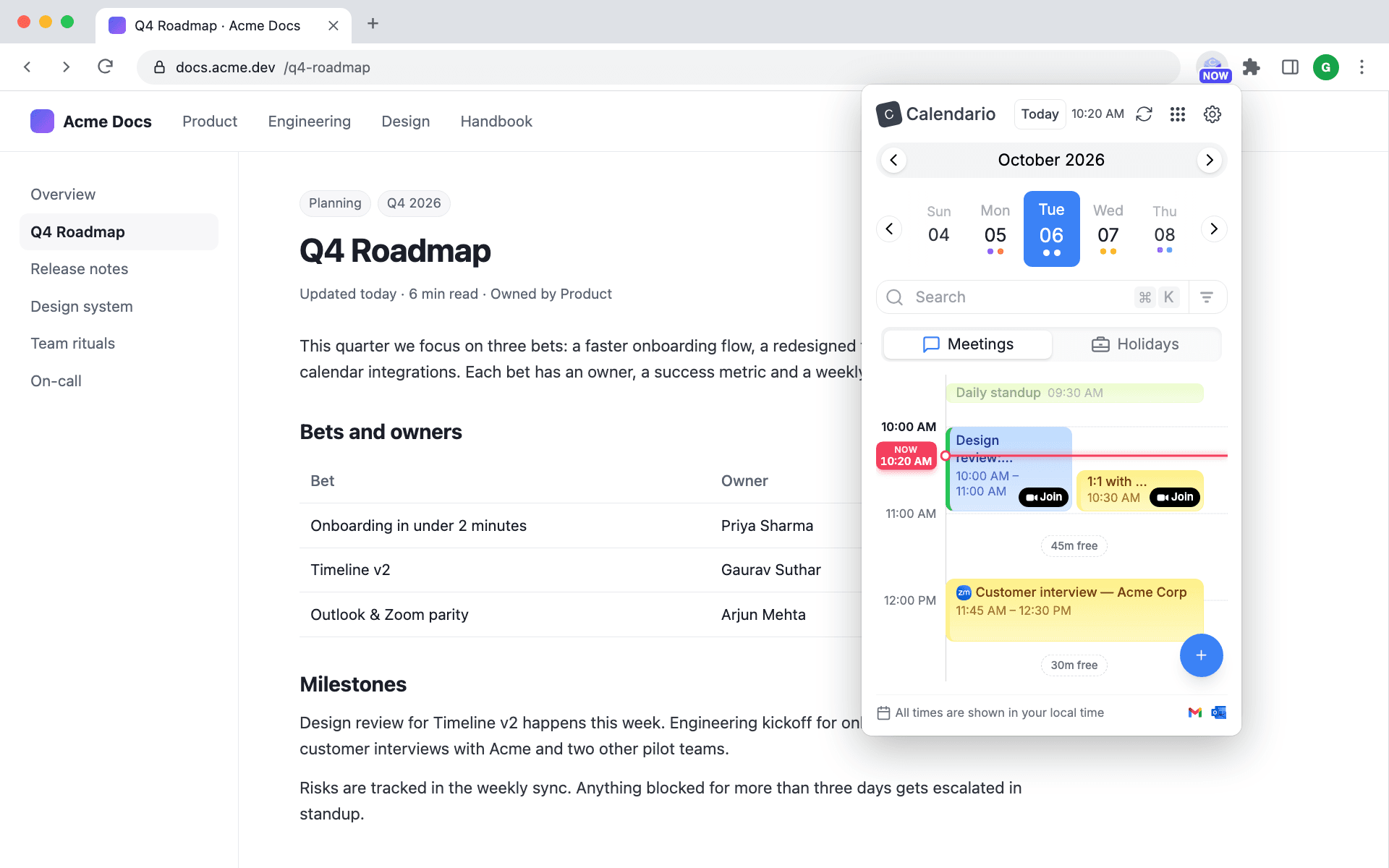
- 3Read your day on the timelineThe live Now line, overlapping meetings side by side, free gaps, one-tap Join, zooming and keyboard control: everything the day timeline shows you.4 min read
- 4Tune the timeline: zoom, working hours, buffers and moreShade the hours outside your working day, add prep time before meetings, color events by calendar and see several days side by side.4 min read
- 5Drag to create, move, resize and copy eventsBook time by dragging across the timeline, reschedule by dragging an event, stretch it from its edge, and hold ⌥/Alt to make a copy, with Undo for every change.3 min read
- 6Event details, RSVPs and quick actionsOpen any event to see who's coming, join the call, answer an invite, grab the link or attachments, and delete one event — or many at once.4 min read
- 7Create events without leaving the pageThe full event composer: pick a calendar, set the time, catch conflicts before they happen, repeat, add a Meet or Teams link, invite guests and attach files.5 min read
- 8Find anything with ⌘K searchSearch every connected calendar at once, use one-tap quick filters, or just type what you mean — “meetings tomorrow morning” — and let Calendario turn it into filters.3 min read
- 9Jump to any date and see holidaysMove around your calendar with the day strip, the month and year pickers and the Today button, and keep public holidays in view.2 min read
- 10Reminders that reach you, and a badge that tells you what's nextIn-page reminder cards with a chime and an Open event button, plus a toolbar badge that shows your next meeting's start time — or NOW.4 min read
- 11Popup, side panel or floating launcherOpen Calendario as a quick popup, keep it docked in Chrome's side panel next to your work, or reach it from a floating launcher on any page.3 min read
- 12Make it yours: themes, colors, languages and time formatLight, dark or system theme, seven accent colors, 12- or 24-hour time, a live clock and fifteen languages.3 min read