Find anything with ⌘K search
Search every connected calendar at once, use one-tap quick filters, or just type what you mean — “meetings tomorrow morning” — and let Calendario turn it into filters.
Part 8 of 12The Calendario GuideShow all partsHide
- 1Getting started with Calendario
- 2Connect Google, Outlook and Zoom — and more than one of each
- 3Read your day on the timeline
- 4Tune the timeline: zoom, working hours, buffers and more
- 5Drag to create, move, resize and copy events
- 6Event details, RSVPs and quick actions
- 7Create events without leaving the page
- 8Find anything with ⌘K search
- 9Jump to any date and see holidays
- 10Reminders that reach you, and a badge that tells you what's next
- 11Popup, side panel or floating launcher
- 12Make it yours: themes, colors, languages and time format
When your events are spread across several Google, Outlook and Zoom accounts, "where was that meeting?" can be a real question. Calendario searches all of them at once.
Open search#
Press ⌘K (CtrlK on Windows) from anywhere in the popup, or click the Search bar. Press the shortcut again, or Esc, to close it.
Before you type anything, search shows a browse page:
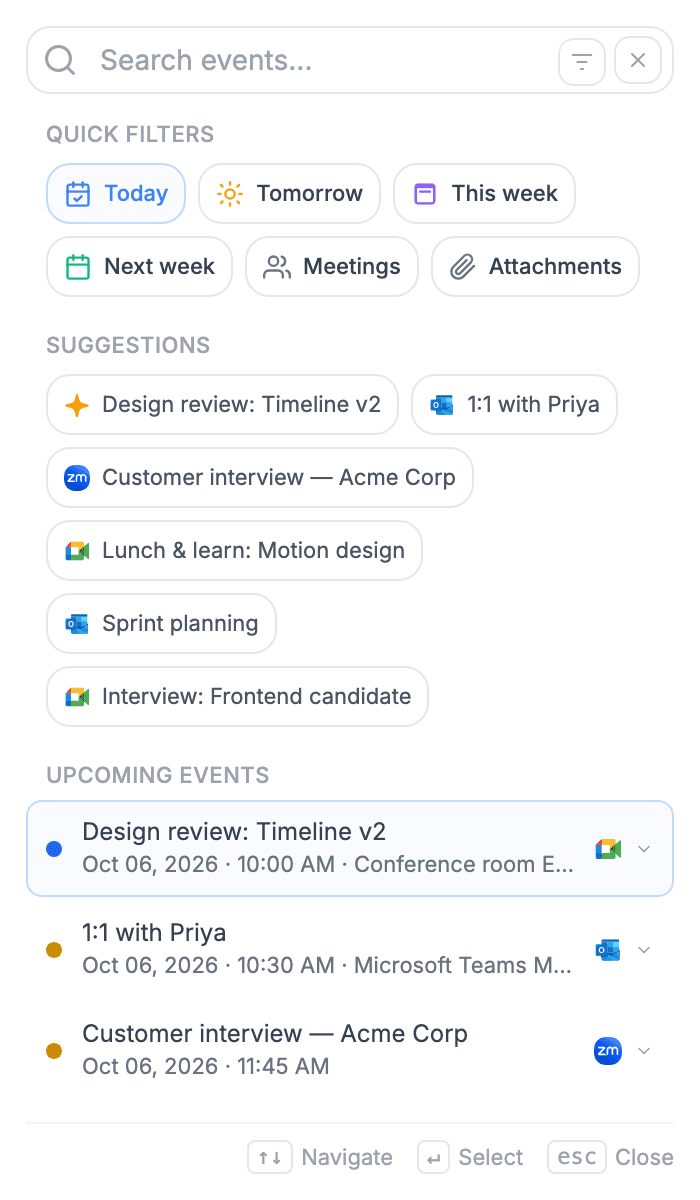
- Quick filters: Today, Tomorrow, This week, Next week, Meetings and Attachments, one tap each.
- Suggestions: events from your own calendars, with their provider icons.
- Upcoming events: the next few things on your schedule.
Quick filters#
Tap a quick filter and it becomes a filter chip in the search bar. You can keep typing to narrow it further or add more filters. Arrow keys move through the results, and Enter expands one into a preview, with live progress for a meeting that's happening now.
Type what you mean#
You don't need to learn filter syntax. Type a plain-English phrase and Calendario turns the parts it understands into filter chips:
meetings tomorrow morning
becomes when: tomorrow, time: morning and has: attendees, with a note that says Turned your words into filters. If that's not what you meant, press Undo to search the raw text instead.
Chips can be removed one at a time with their ×, and a badge on the filter button counts how many are active. The filter panel (the button at the right of the search bar) groups every option into Time, Meeting, People, Status and More tabs: date range, time of day, duration, attendees, your response and more. It shows a live count of matching events as you adjust it.
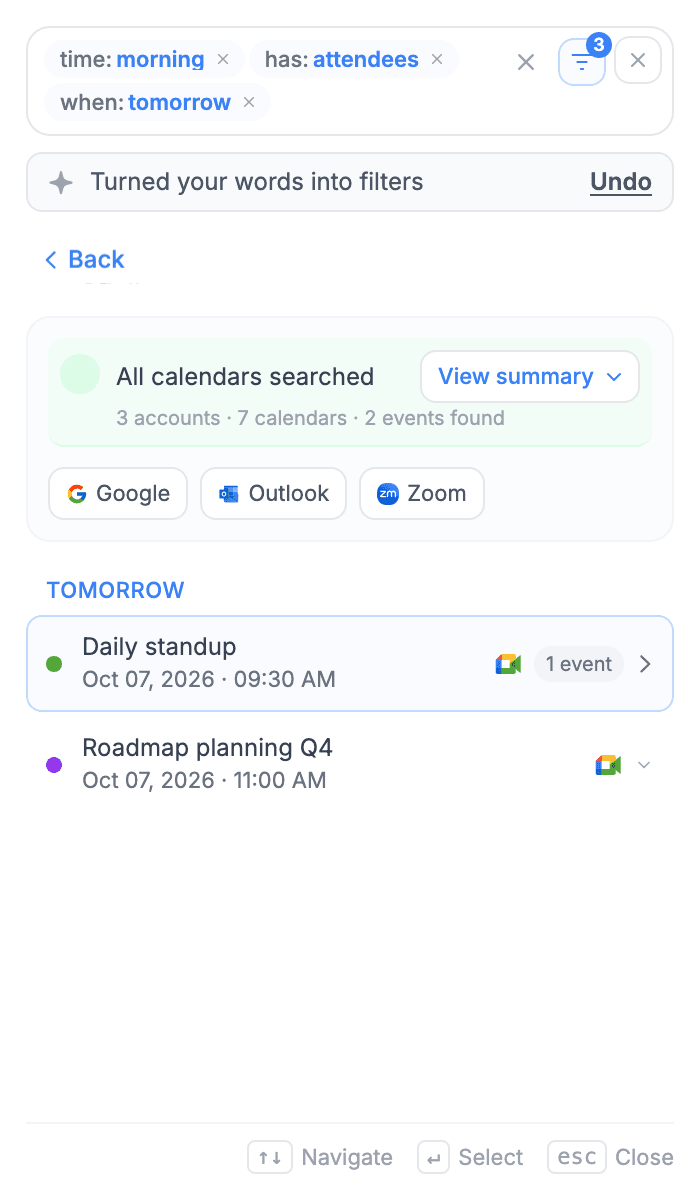
Filter chips
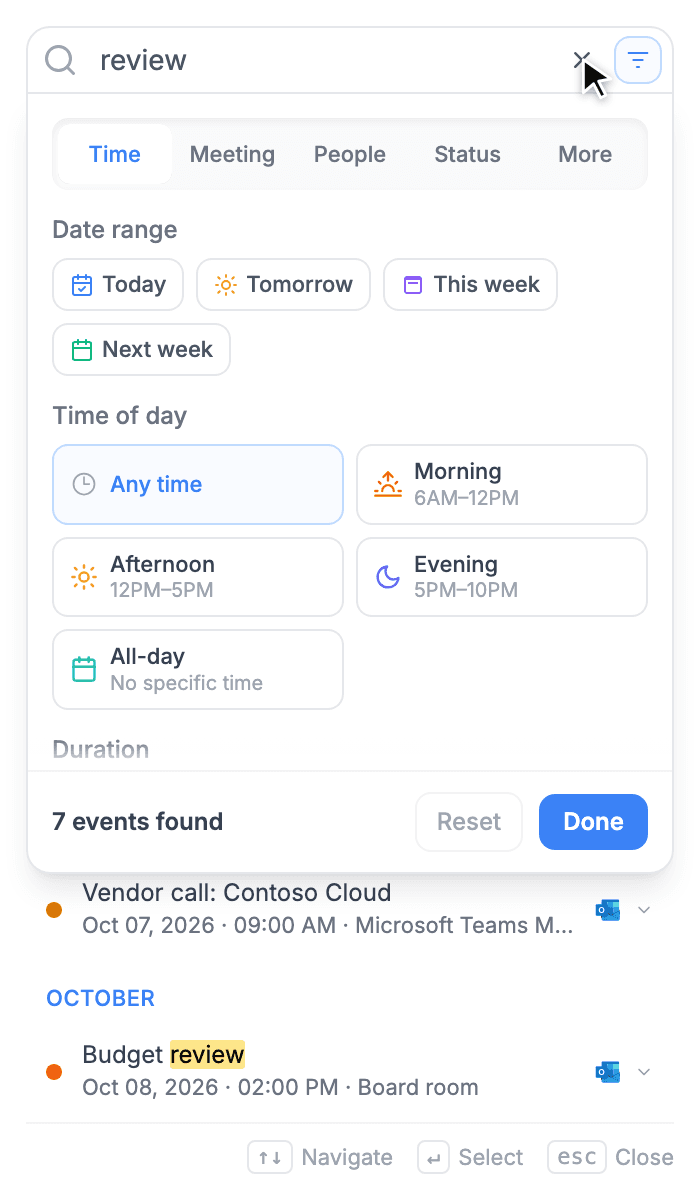
Filter panel
Reading the results#
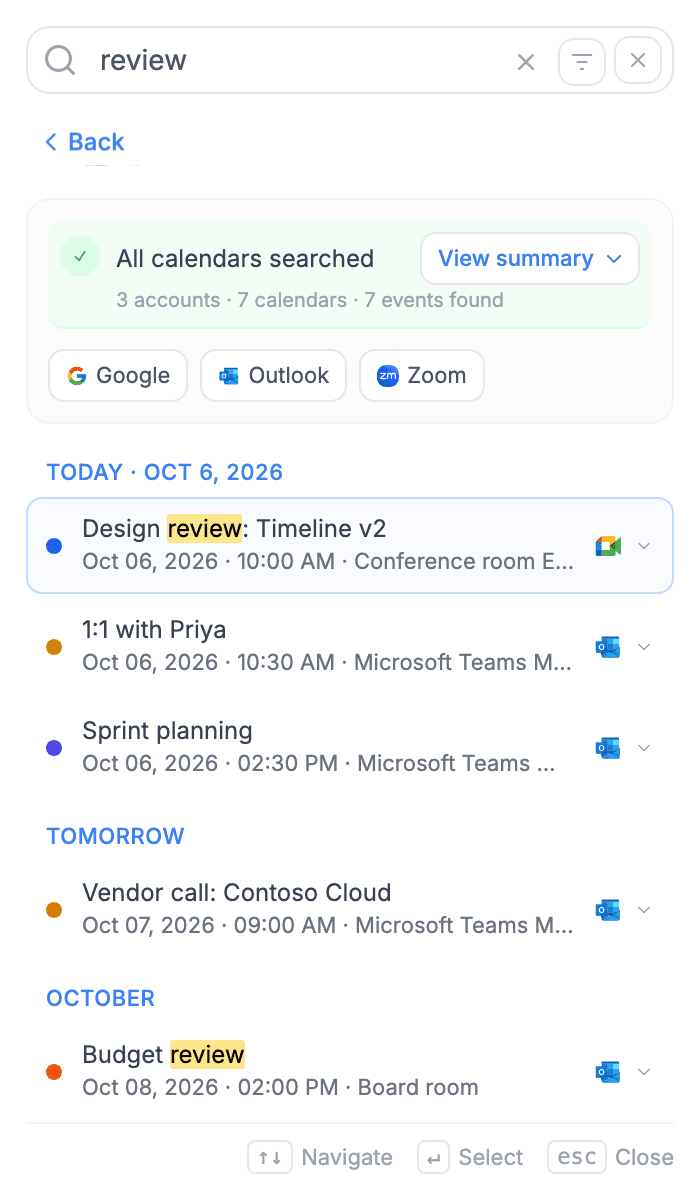
- A summary says what was searched, for example All calendars searched · 3 accounts · 7 calendars · 7 events found. View summary breaks that down per account and calendar.
- Results are grouped by day (Today, Tomorrow, then by month), with the matching text highlighted.
- Recurring meetings collapse into one row; open it to see the occurrences, with Show next 6 months to look further ahead.
- An expanded result has Go to date in calendar, which closes search, jumps to that day and opens the event there.
Keyboard reference#
| ⌘+K | Open or close search (Ctrl + K on Windows) |
| ↑ | Previous result |
| ↓ | Next result |
| Enter | Expand the selected result |
| Esc | Close search |
What's next#
Search finds a specific event. To browse, part 9 covers jumping to any date and the holidays view.