Reminders that reach you, and a badge that tells you what's next
In-page reminder cards with a chime and an Open event button, plus a toolbar badge that shows your next meeting's start time — or NOW.
Part 10 of 12The Calendario GuideShow all partsHide
- 1Getting started with Calendario
- 2Connect Google, Outlook and Zoom — and more than one of each
- 3Read your day on the timeline
- 4Tune the timeline: zoom, working hours, buffers and more
- 5Drag to create, move, resize and copy events
- 6Event details, RSVPs and quick actions
- 7Create events without leaving the page
- 8Find anything with ⌘K search
- 9Jump to any date and see holidays
- 10Reminders that reach you, and a badge that tells you what's next
- 11Popup, side panel or floating launcher
- 12Make it yours: themes, colors, languages and time format
A calendar is only useful if it gets your attention at the right moment. Calendario does that two ways: a reminder that appears on whatever page you're reading, and a badge on its toolbar icon that's always visible.
Reminder cards on the page you're on#
When an event's reminder is due, for example 10 minutes before a meeting, a card slides into the top-right corner of the page you're on, with a soft chime.
The card shows:
- The event's title.
- When it starts, for example In 10 minutes · 10:30 AM.
- Open event, which opens Calendario on that day with the event expanded.
- × to dismiss it.
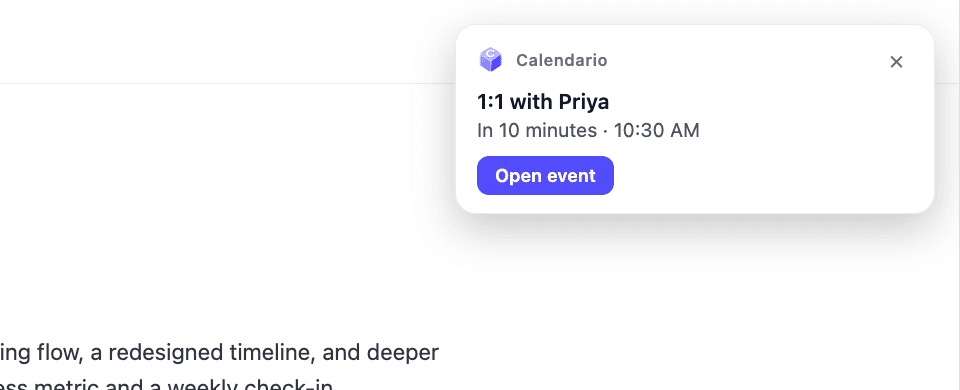
A few details that make it behave well:
- It's in every tab. The card appears in all open tabs at once, including pages you open while the reminder is still relevant.
- Dismiss once. Closing it (or opening the event) removes it from every tab.
- It doesn't linger. It goes away on its own a few minutes after the event starts, or sooner if you set an auto-close time.
- It can't break the page. The card is isolated from the website's own styles, so it looks the same everywhere and never changes the page around it.
Reminder settings#
- 1
Open Settings → Appearance → Notifications
Expand the Notifications card.
- 2
Turn reminders on or off
Reminder notifications shows a popup and plays a sound when a reminder is due. Turn it off to silence all of them.
- 3
Choose when cards close
Auto-close reminders closes a card automatically after a set time, or never.
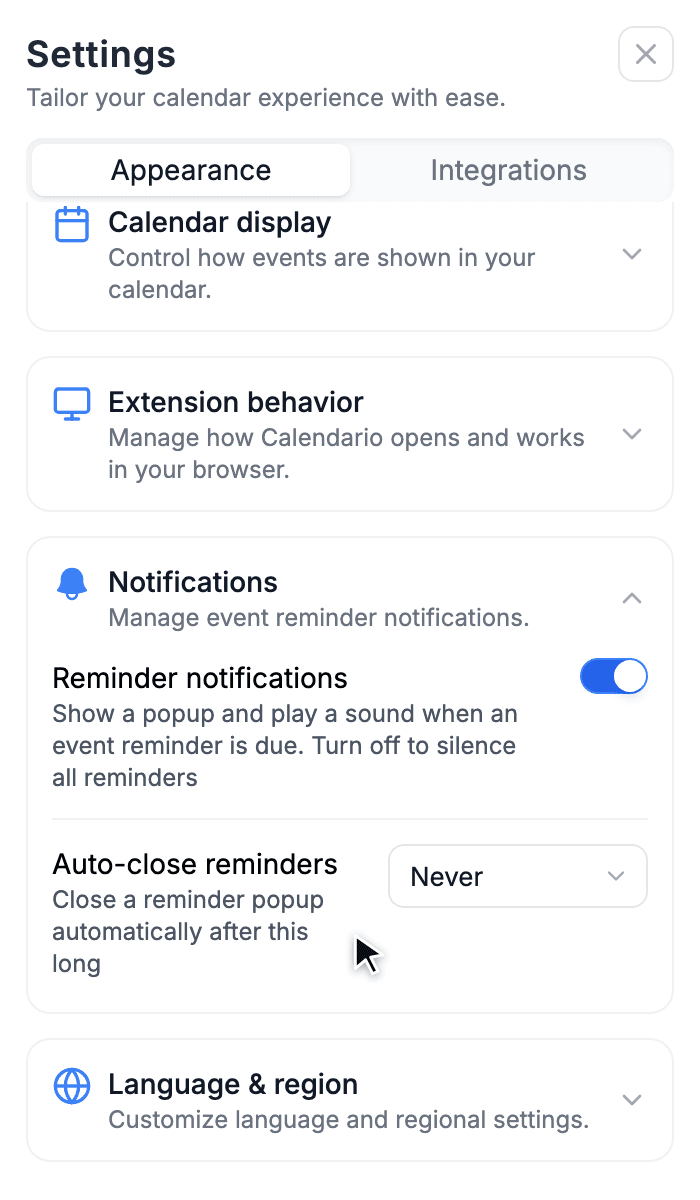
When a reminder fires depends on the event's own reminder: the one set in Google or Outlook, or the one you choose when creating the event.
The toolbar badge#
Pin Calendario to your toolbar and its icon becomes a tiny status display:
- The start time of your next event today, such as 10:30, when nothing is happening right now.
- NOW while a meeting is in progress.
- Nothing at all once your day is done.

Next event at 10:30

Meeting in progress
The badge updates at the exact moments it needs to (when a meeting starts or ends), not on a timer, and it follows your 12-hour or 24-hour setting. You can tell whether you're free without opening anything.
What's next#
You've now seen the popup in detail. Part 11 shows the other ways to open Calendario: a side panel that stays open, and a floating launcher on every page.