Ask Calendario: your calendar, in plain words
Press ⌘J and type what you want: “lunch with Sam on Monday at 1”, “push the design review 30 minutes”, “when am I free on Monday?”. Calendario shows you exactly what will change before anything does.
Part 13 of 13The Calendario GuideShow all partsHide
- 1Getting started with Calendario
- 2Connect Google, Outlook and Zoom — and more than one of each
- 3Read your day on the timeline
- 4Tune the timeline: zoom, working hours, buffers and more
- 5Drag to create, move, resize and copy events
- 6Event details, RSVPs and quick actions
- 7Create events without leaving the page
- 8Find anything with ⌘K search
- 9Jump to any date and see holidays
- 10Reminders that reach you, and a badge that tells you what's next
- 11Popup, side panel or floating launcher
- 12Make it yours: themes, colors, languages and time format
- 13Ask Calendario: your calendar, in plain words
Some calendar jobs take a dozen clicks: find the event, open it, change the time, save, tell the guests. Ask does them from one sentence. Type what you want, check the preview, and confirm.
Ask works with Claude, ChatGPT, Gemini or Grok using your own API key, or with Gemini Nano, which runs inside Chrome on your device and needs no key at all.
Set it up once#
- 1
Open Settings → Integrations → AI assistant
Or just press Ask: until an AI is set up, it shows an Open AI settings button that takes you there.
- 2
Pick an AI
Claude (Anthropic), ChatGPT (OpenAI), Gemini (Google), Grok (xAI), or Gemini Nano on this device.
- 3
Add your key
Each provider shows a short How to get a key guide with a link to its keys page. Paste the key and tap Save key. Gemini Nano needs no key, just a one-time Download model.
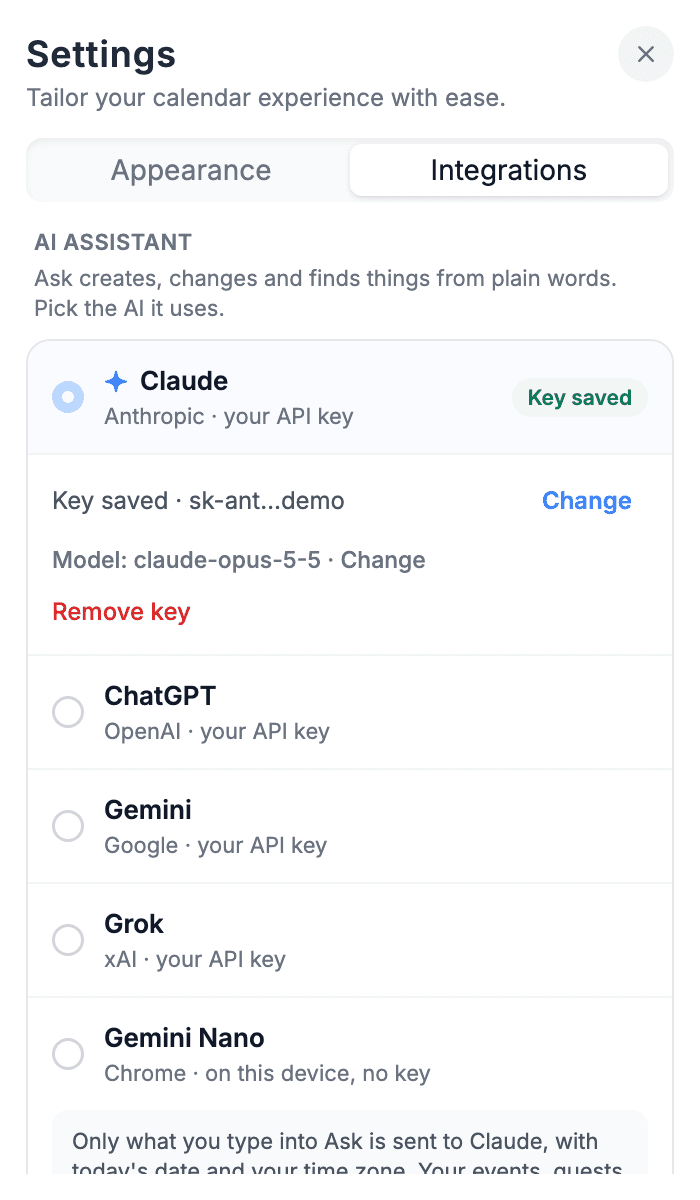
Your own key
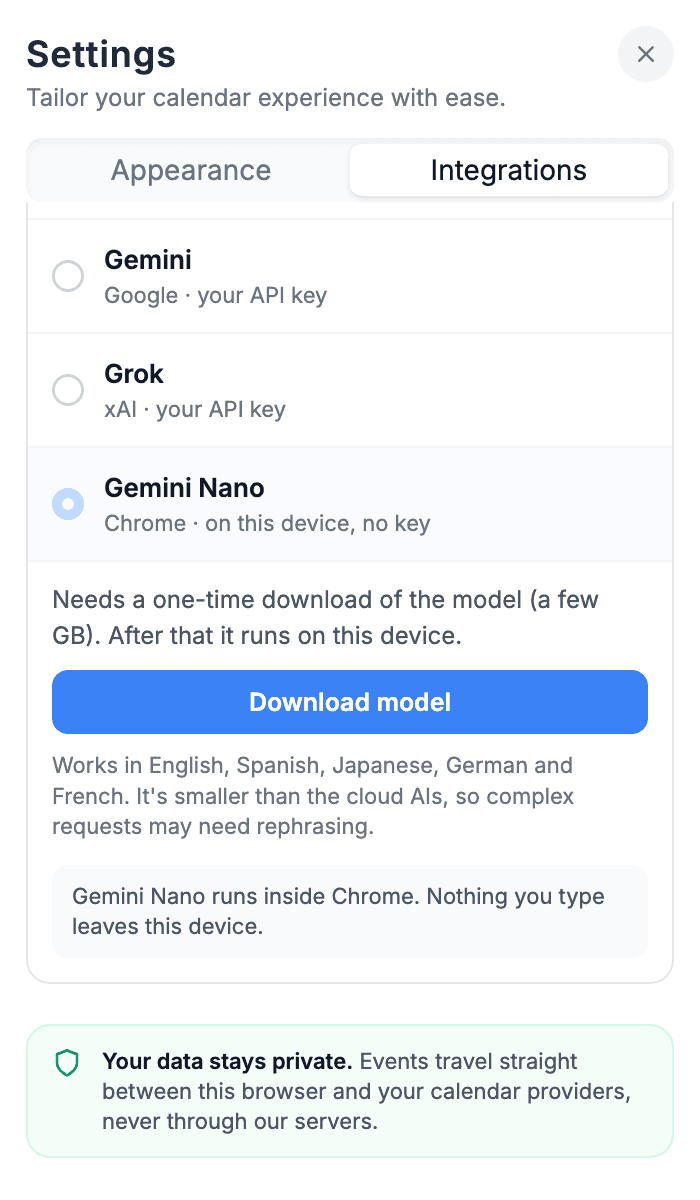
Gemini Nano, on this device
A few things worth knowing:
- You pay the provider, not Calendario. Some providers ask you to add billing before a key works. Google offers a free tier for Gemini, so you can start without one.
- Your key is stored only in this browser.
- Each provider has an optional Model field if you want something other than the default.
- Gemini Nano needs desktop Chrome with its built-in AI available and a download of a few GB. It works in English, Spanish, Japanese, German and French, and since it's smaller than the cloud AIs, a complicated request may need rephrasing.
Open Ask#
- Click Ask in the search bar on the main screen, or press ⌘J (CtrlJ on Windows) anywhere, including from search.
- From an event: open its ⋯ menu and choose Ask about this event. The event is pinned to the chat, so "move it to tomorrow" or "add Sam" means that event.
- From a selection: ⌘-click several events on the timeline and press Ask in the bar at the bottom. "Decline these" or "move them to tomorrow" then means the selected events.
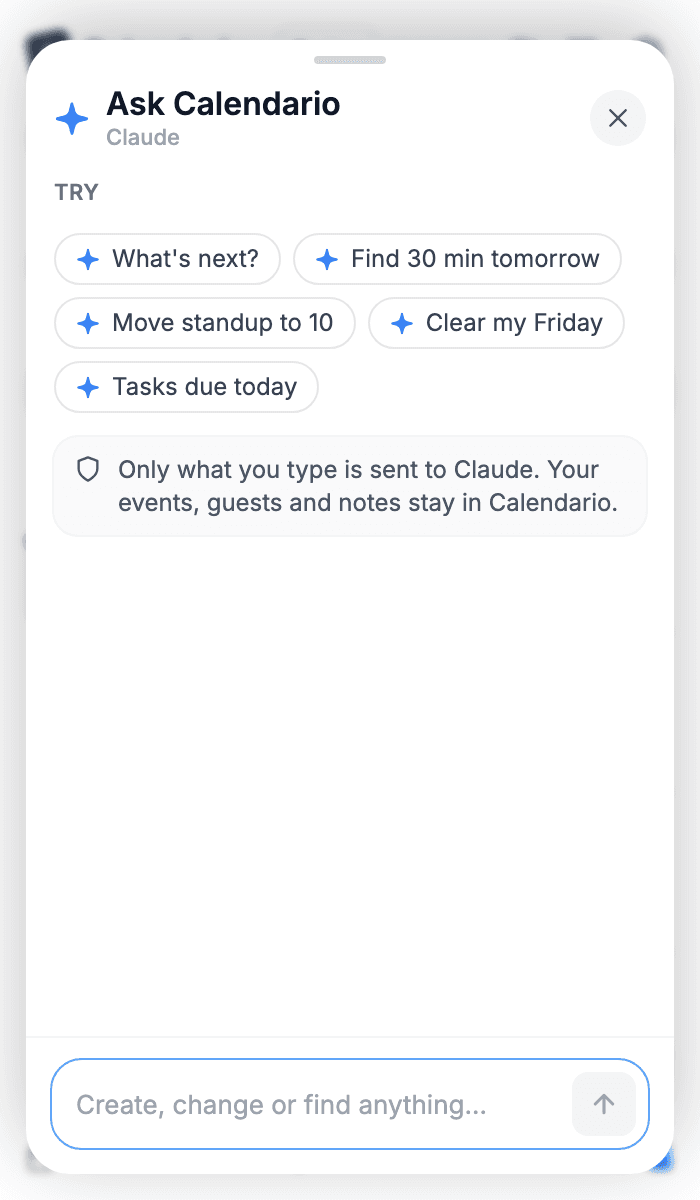
From ⌘J
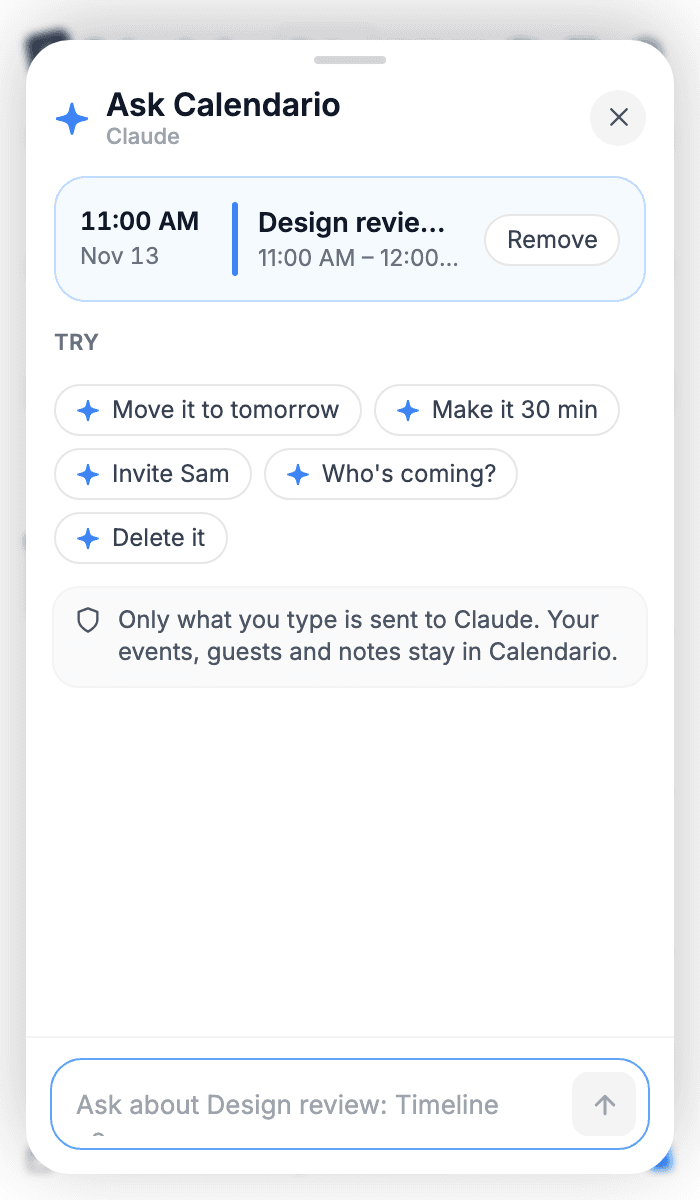
From an event
Nothing changes until you confirm#
Every request becomes a preview card first. It shows exactly what will happen, along with anything you should know before confirming:
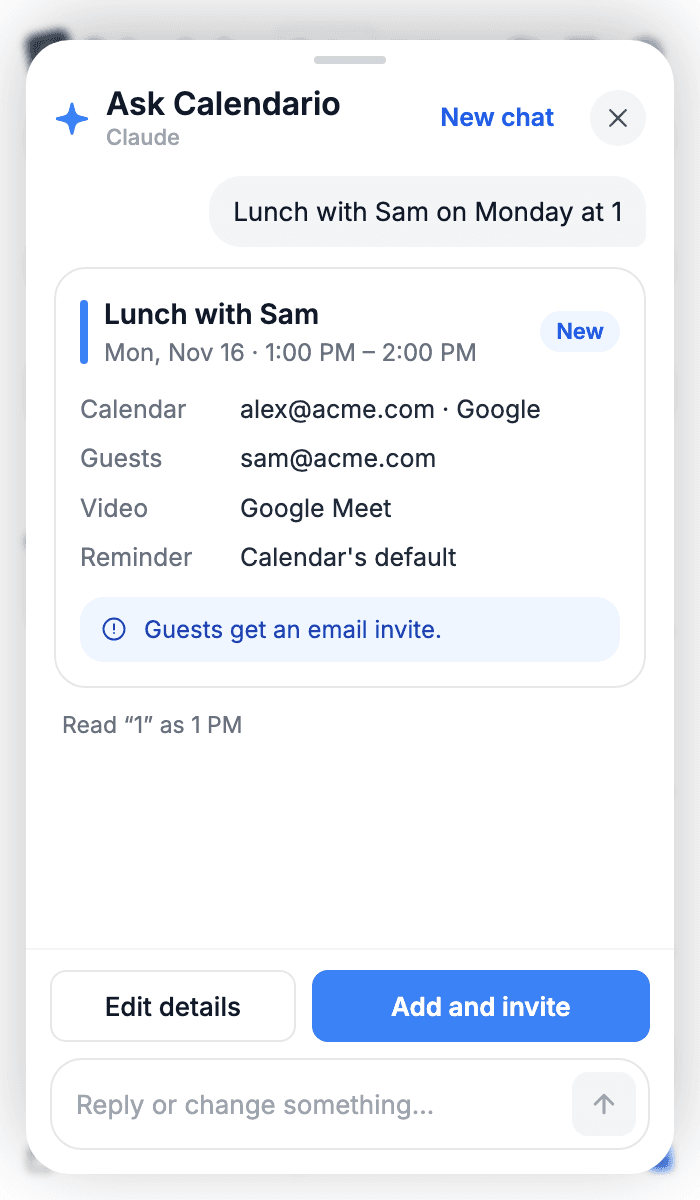
Create
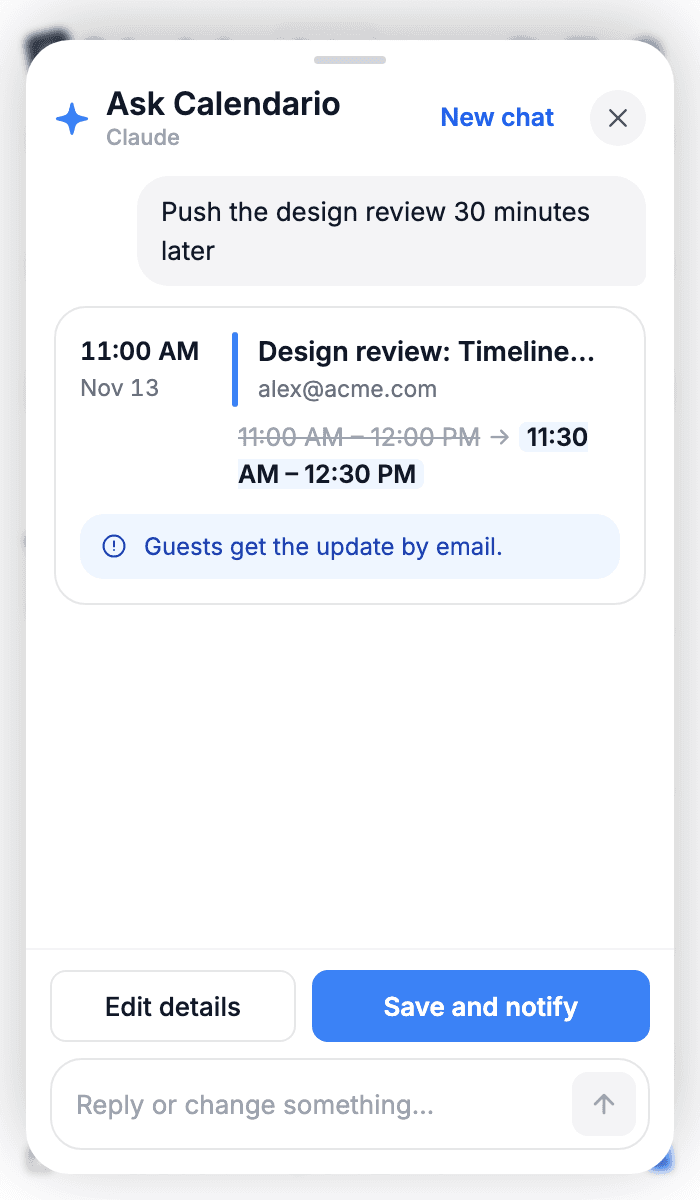
Move
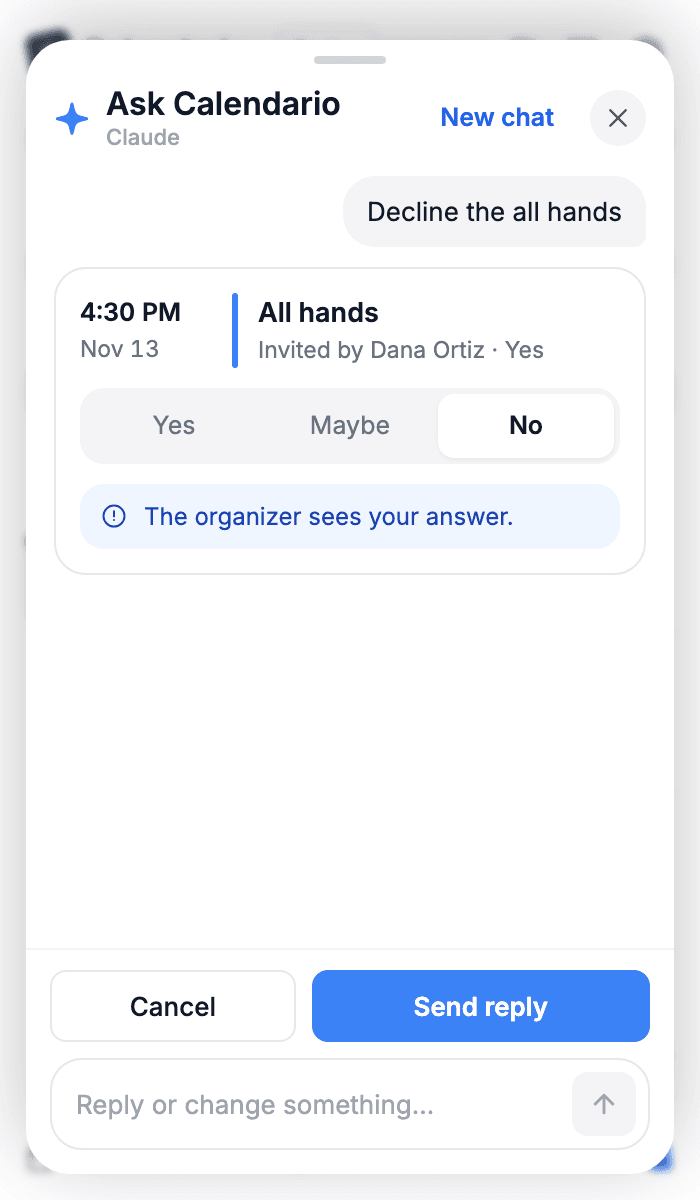
Reply
- Guesses are spelled out. "Lunch at 1" comes back with Read “1” as 1 PM, so you can correct it.
- Side effects are called out: Guests get an email invite, Guests get the update by email, The organizer sees your answer, or Overlaps Lunch & learn at 1:30 PM.
- If more than one event matches, Ask asks Which one? and lists them.
- Deleting several events shows a list to review first. Events someone else organizes start unticked, with Decline offered instead, since deleting them only removes them for you.
- Edit details opens the full event composer with everything filled in, for when you want to adjust more than a sentence can.
Ask follows the same rules as the rest of the app. It won't change an event you're only a guest of, a calendar you can only view, or a Zoom meeting, and it tells you why.
Undo, follow up, keep going#
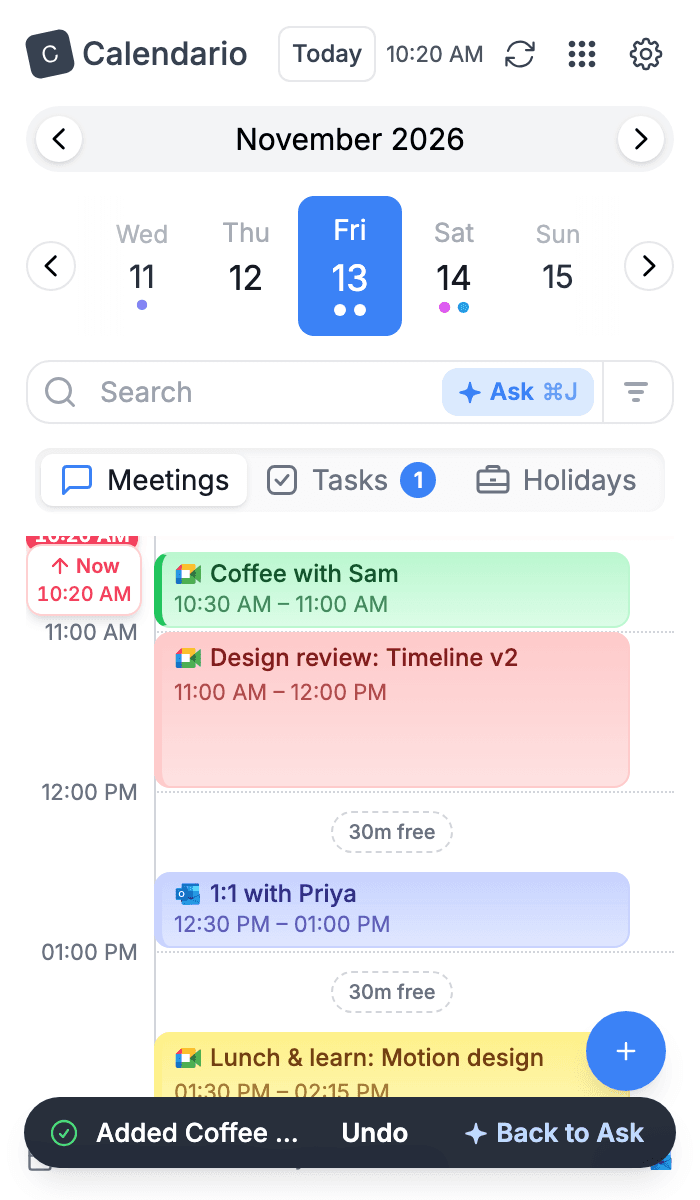
After you confirm, Ask closes so you can see the change on the timeline. The message at the bottom has Undo and Back to Ask. The chat remembers what you just did, so follow-ups work naturally:
Lunch with Sam on Monday at 1
Make it 30 min
Invite Priya too
Reopening Ask picks up where you left off. After 30 minutes without using it, or when you tap New chat, it starts fresh. Several requests in one message become several steps, with a Do all button to run them together, and one Undo reverses the lot.
Ask questions too#
Ask doesn't just change things. It answers questions about your calendar, using your events on the device:
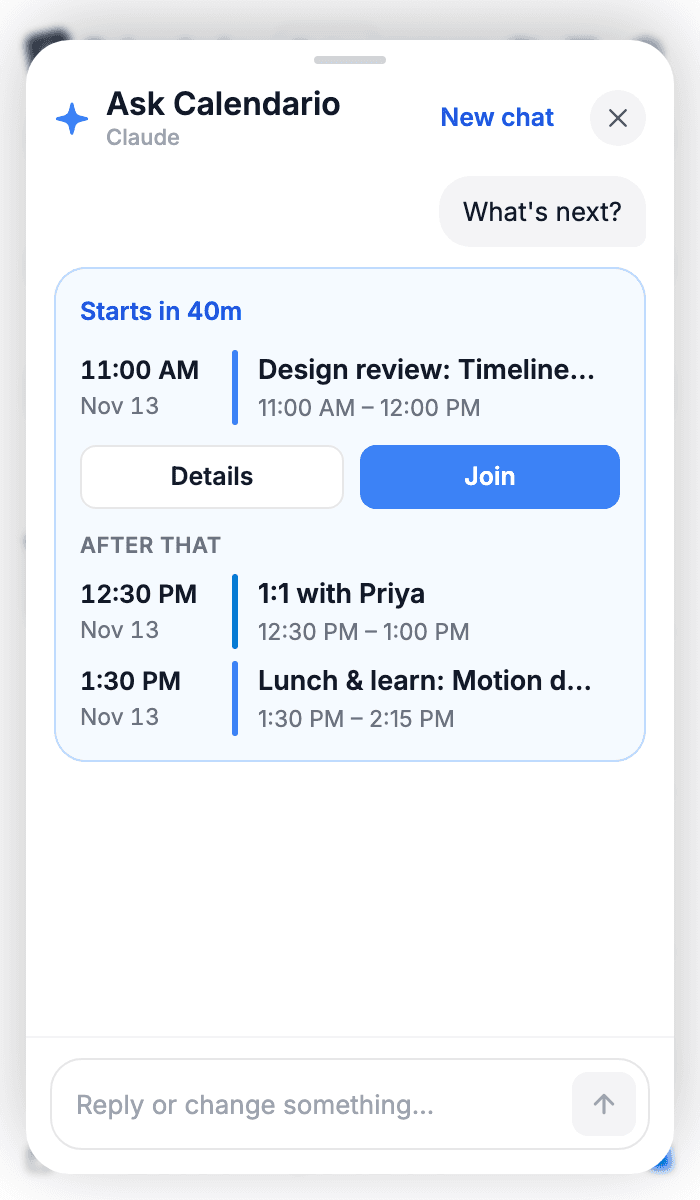
What's next?
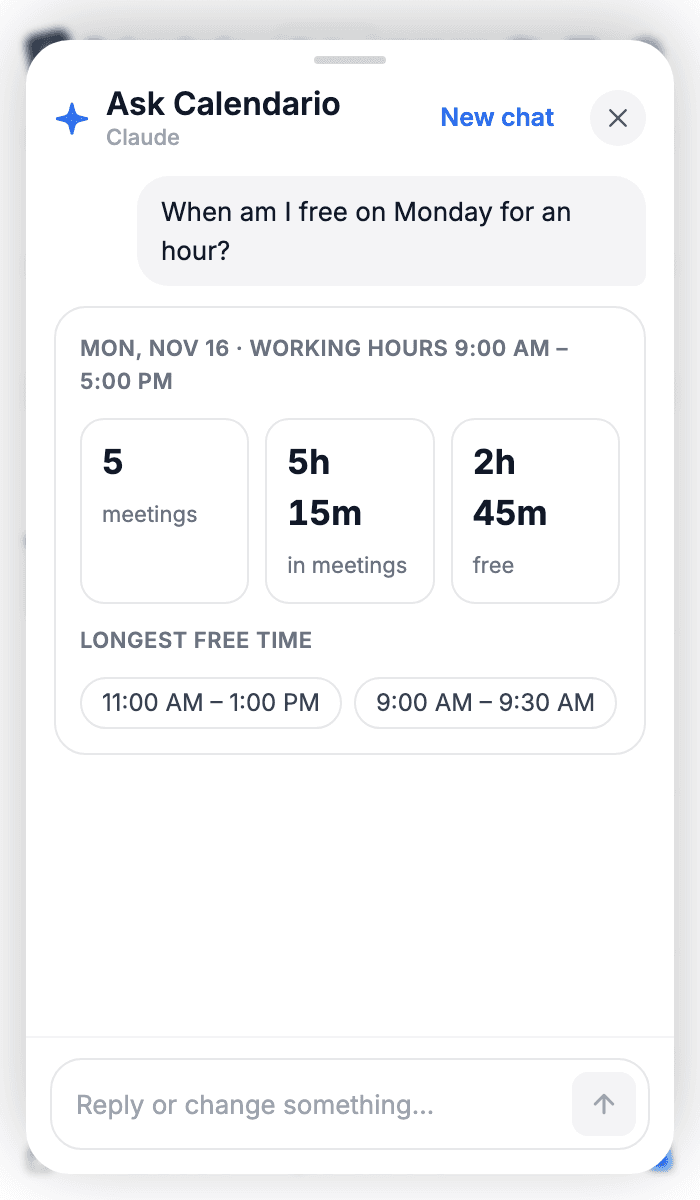
When am I free?
Some things to try:
- "What's next?" or "When's my next 1:1 with Priya?"
- "Am I free Thursday at 3?"
- "How busy is tomorrow?" or "Find 30 min tomorrow afternoon"
- "Any conflicts this week?"
- "Who's coming to the all hands?"
- "Show me all standups" opens search with the results
Free-time answers only look at your own calendars. Calendario can't see your guests' availability.
Tasks and settings#
If you've connected Google Tasks or Microsoft To Do from the Tasks tab, Ask handles tasks as well: "Remind me to send the recap", "Tasks due today", or "Prep slides before the design review", which adds a task due that day and links it to the meeting.
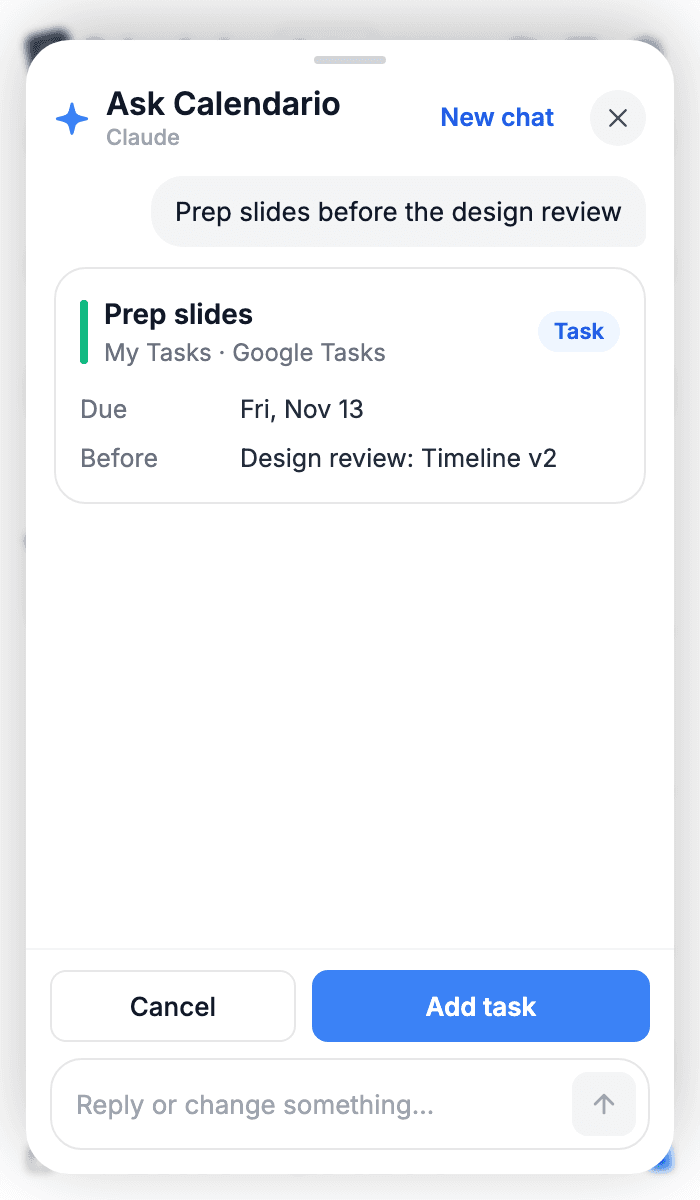
It can also change settings ("dark mode", "use 24-hour time", "show 3 days"), hide or show a calendar, jump to a date, or sync now.
What Ask can't do (yet)#
- Create Zoom meetings. Use Meet or Teams, or add a Zoom link as the place.
- Change a repeating event "from now on". Ask can change one occurrence or the whole series.
- See other people's free time.
- Anything outside your calendar, like booking a flight or sending an email. It will say so rather than guess.
Back to the start#
That's the newest part of Calendario. If you missed the earlier ones, the guide starts with getting set up, and search covers finding events with tabs and filters when you'd rather click than type.