Read your day on the timeline
The live Now line, overlapping meetings side by side, free gaps, one-tap Join, zooming and keyboard control: everything the day timeline shows you.
Part 3 of 12The Calendario GuideShow all partsHide
- 1Getting started with Calendario
- 2Connect Google, Outlook and Zoom — and more than one of each
- 3Read your day on the timeline
- 4Tune the timeline: zoom, working hours, buffers and more
- 5Drag to create, move, resize and copy events
- 6Event details, RSVPs and quick actions
- 7Create events without leaving the page
- 8Find anything with ⌘K search
- 9Jump to any date and see holidays
- 10Reminders that reach you, and a badge that tells you what's next
- 11Popup, side panel or floating launcher
- 12Make it yours: themes, colors, languages and time format
The timeline is the heart of Calendario. It shows meetings where they actually sit in your day, so you can see at a glance how long a gap is, what overlaps, and what's happening right now.
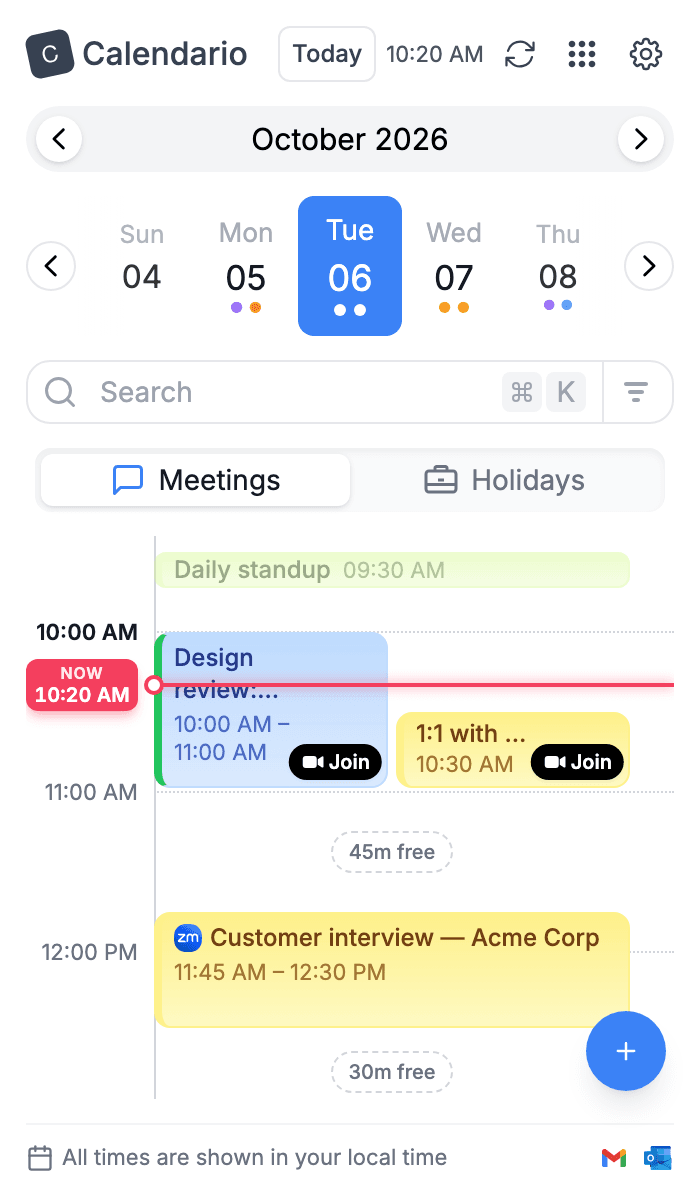
Light
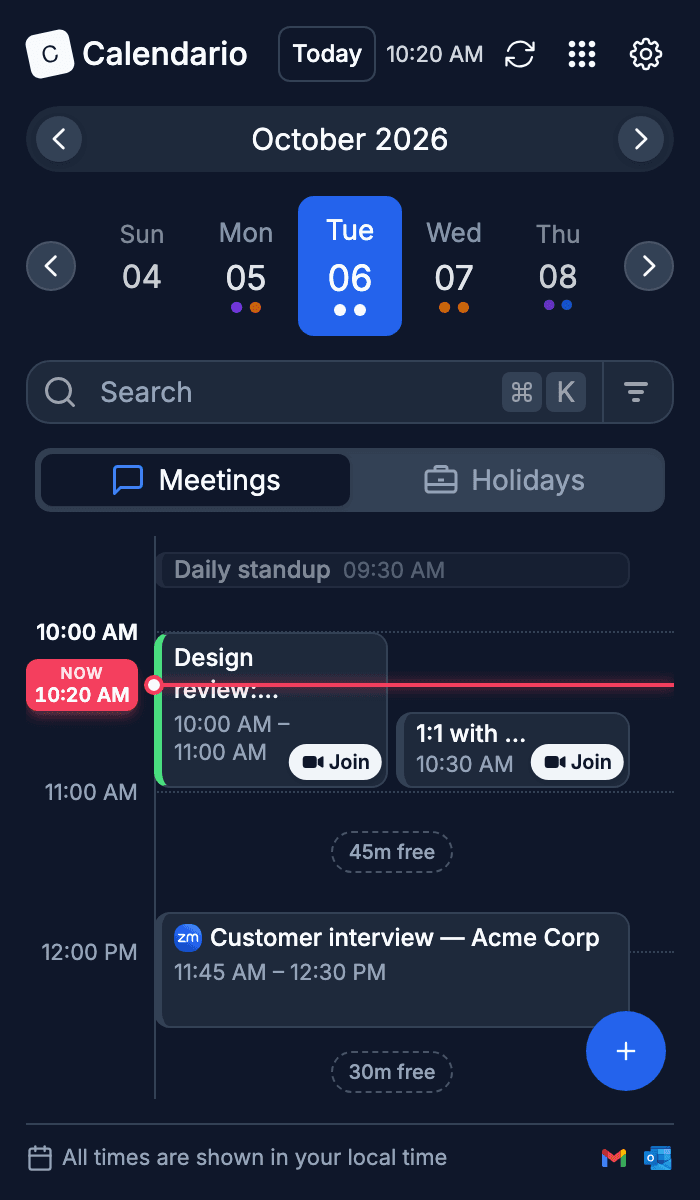
Dark
What you're looking at#
The Now line#
A red line marks the current time and moves as the day goes on. The label on the left shows the exact time. Turn on Scroll event list in Settings and the popup opens scrolled to whatever is happening now, or to the next event if nothing is.
Overlapping meetings sit side by side#
Double-booked? Overlapping events split the width between them instead of hiding behind each other. Above, the 1:1 that starts at 10:30 sits next to the design review that runs until 11:00.
Free time between meetings#
Dashed chips such as 45m free mark the gaps between events, so you don't have to work out whether there's time for a coffee. Click a chip to create an event that fills exactly that gap (see part 5).
Join in one click#
Events with a video call get a Join button for Google Meet, Microsoft Teams or Zoom. For Outlook events, Calendario also picks up meeting links that are only pasted into the location or description.
Your response, at a glance#
Each event shows how you answered it. Invitations you haven't responded to yet have a dashed outline, tentative ones are hatched, and declined ones are hollowed out and struck through. You can tell what still needs an answer without opening anything.
All-day events#
All-day events, such as birthdays or an offsite, sit in their own row at the top of the day rather than stretching across every hour.
Jump back to now#
Scroll away to look at the evening and a Now pill appears in the left margin, with an arrow pointing toward the current time. Click it to glide straight back.
Zoom in and out#
Hold ⌘ (Ctrl on Windows) and scroll over the timeline, or pinch on a trackpad, to change the hour height. The time under your pointer stays put while the grid grows or shrinks around it.
You can also set the zoom level in Settings as Hour height. Part 4 covers that and every other display option.
Drive it from the keyboard#
The timeline is fully usable without a mouse:
| ↓ | Focus the next event |
| ↑ | Focus the previous event |
| Enter | Open the focused event |
| → | Go to the next day |
| ← | Go to the previous day |
| Delete | Delete the focused event (after confirming) |
| ⌘+K | Open search |
Prefer a simple list?#
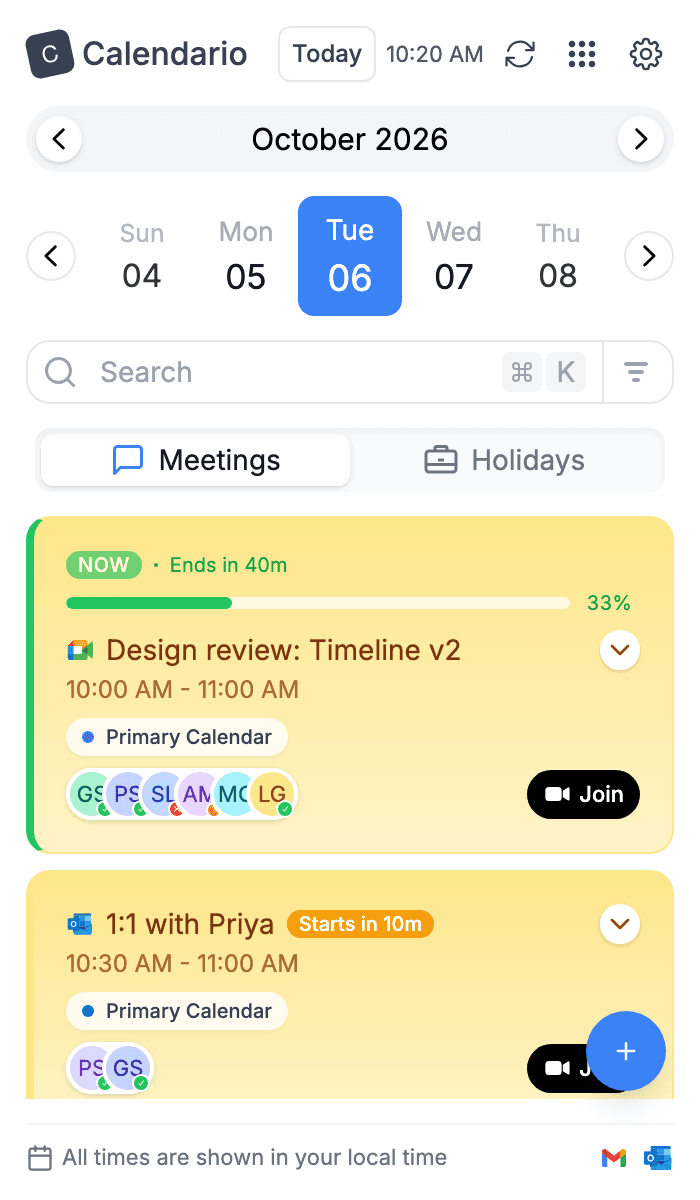
If you'd rather see an agenda, turn off Timeline view in Settings → Appearance → Calendar display. You get a clean list of event cards with start times, live progress on the current meeting and the same Join buttons.
What's next#
Make the timeline fit the way you work, with working hours, prep buffers, calendar colors and several days side by side, in part 4.