Make it yours: themes, colors, languages and time format
Light, dark or system theme, seven accent colors, 12- or 24-hour time, a live clock and fifteen languages.
Part 12 of 12The Calendario GuideShow all partsHide
- 1Getting started with Calendario
- 2Connect Google, Outlook and Zoom — and more than one of each
- 3Read your day on the timeline
- 4Tune the timeline: zoom, working hours, buffers and more
- 5Drag to create, move, resize and copy events
- 6Event details, RSVPs and quick actions
- 7Create events without leaving the page
- 8Find anything with ⌘K search
- 9Jump to any date and see holidays
- 10Reminders that reach you, and a badge that tells you what's next
- 11Popup, side panel or floating launcher
- 12Make it yours: themes, colors, languages and time format
Calendario is something you'll look at dozens of times a day, so it should look the way you like. Everything in this part lives in Settings → Appearance.
Theme and accent color#
- 1
Pick an interface theme
Under Interface theme, choose System (follow your computer's light or dark setting), Light or Dark.
- 2
Pick an accent color
Choose one of seven accent colors. It's used for the selected day, buttons, switches and highlights throughout the app.
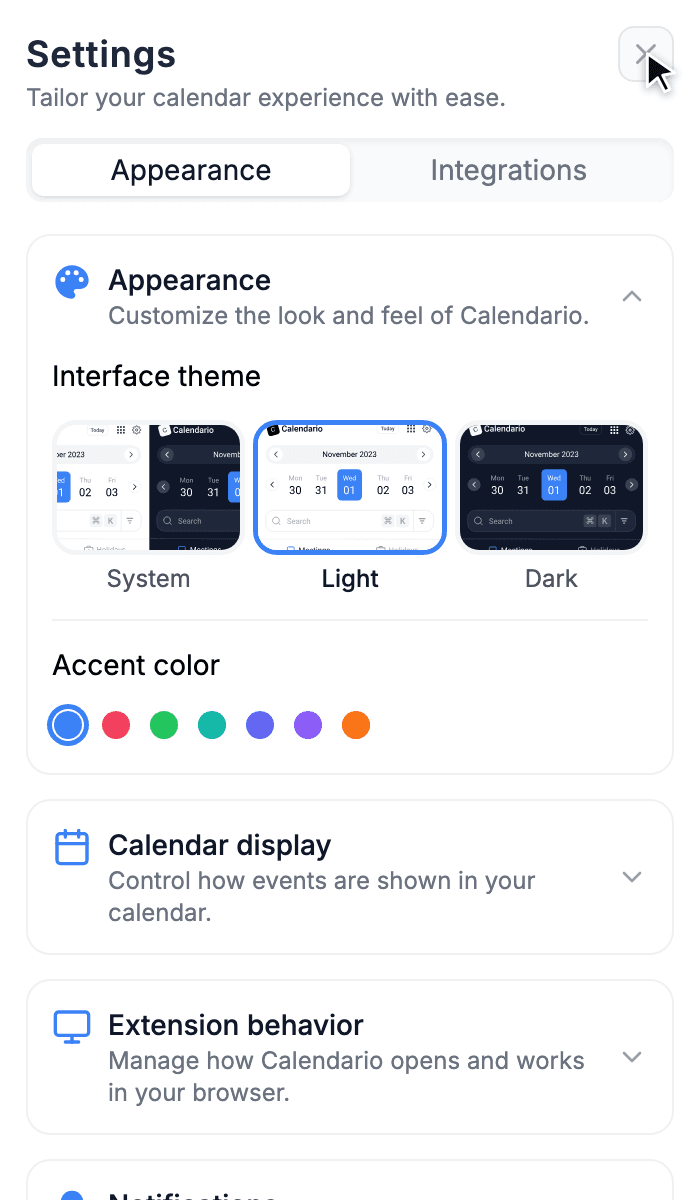
Settings
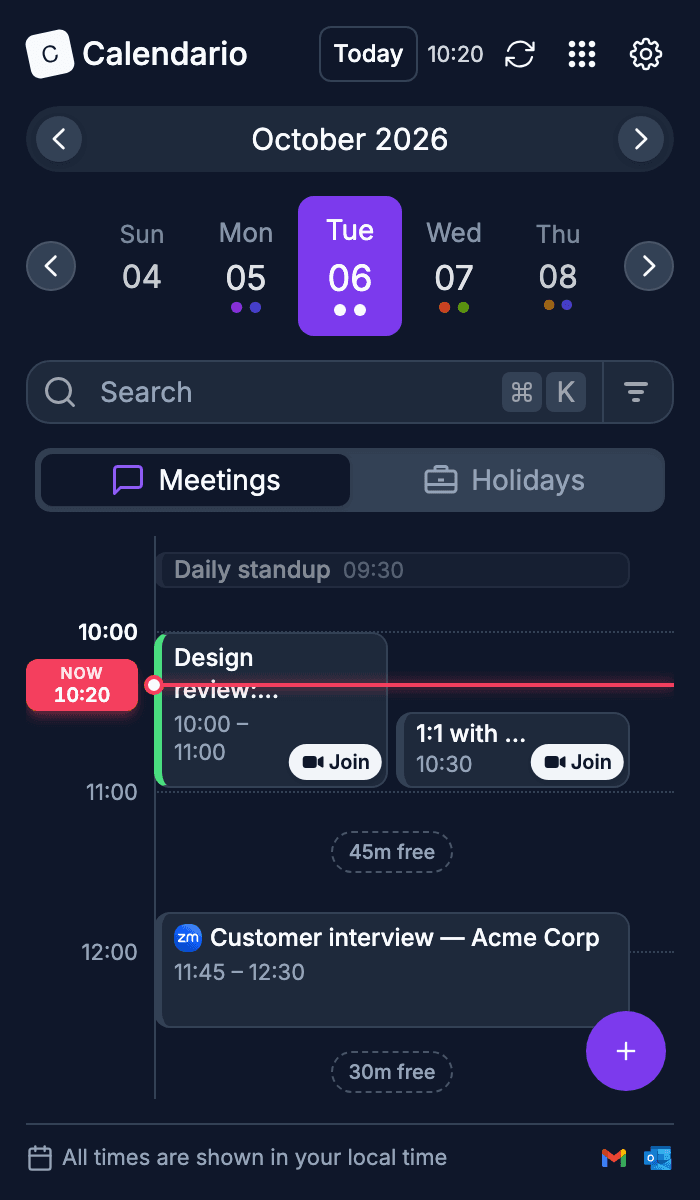
Dark, violet, 24-hour
Time format and live clock#
In Calendar display:
- Time format switches between 12-hour (10:30 AM) and 24-hour (10:30) times everywhere: the timeline, event cards, search and the toolbar badge. A preview shows the result before you leave Settings.
- Show current time adds a live clock next to the Today button.
Fifteen languages#
Calendario speaks English, Hindi, Spanish, French, German, Portuguese, Italian, Turkish, Tamil, Telugu, Bengali, Japanese, Korean, Simplified Chinese and Arabic. Dates, weekdays and month names follow the language you pick.
- 1
Open Settings → Appearance → Language & region
Expand the Language & region card.
- 2
Choose a language
Pick from the Language list. The whole app switches immediately.
You can also choose the language on the welcome screen before you sign in, using the picker in its top-right corner.
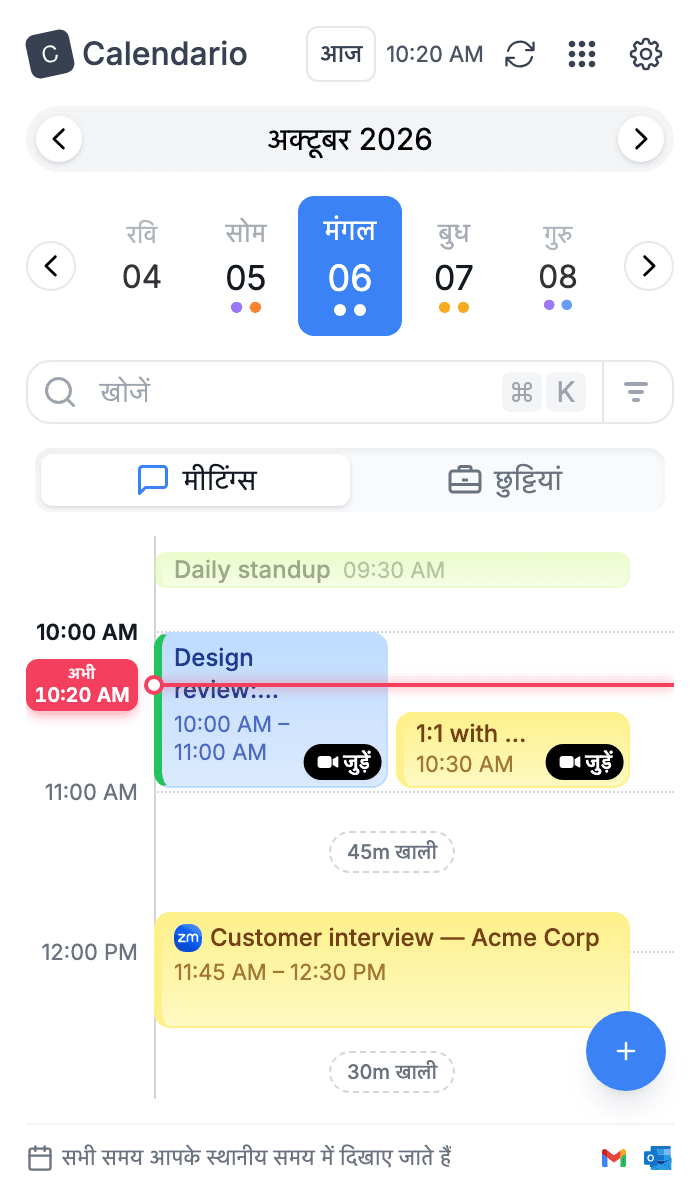
हिन्दी
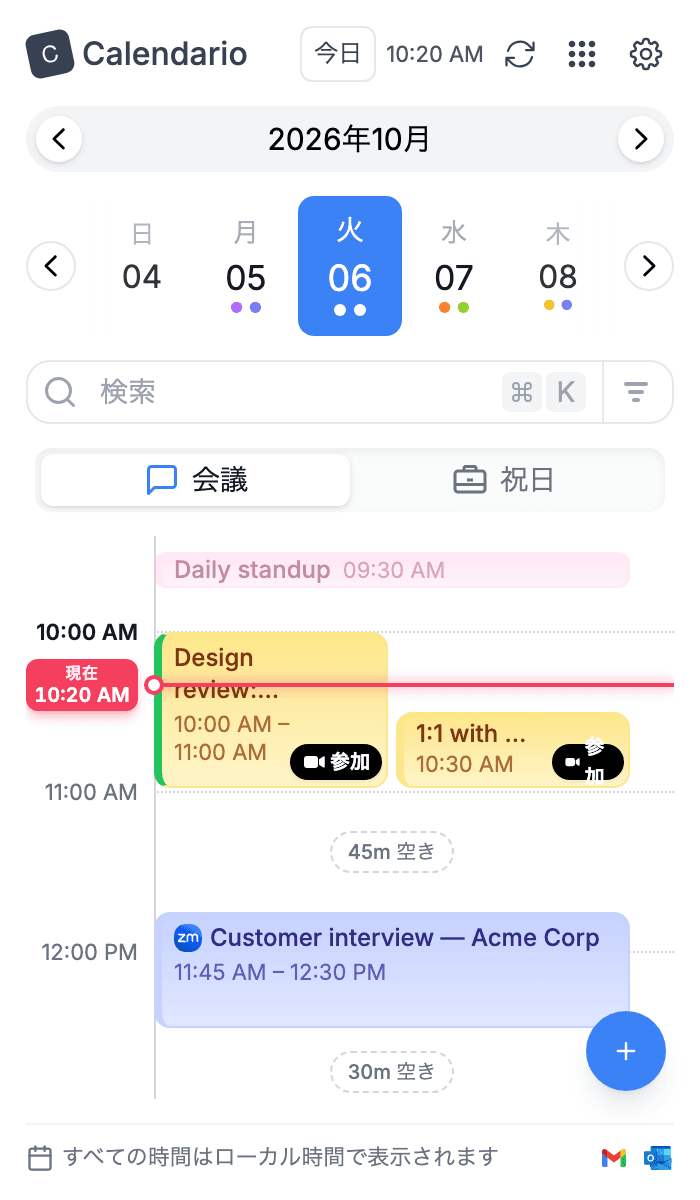
日本語
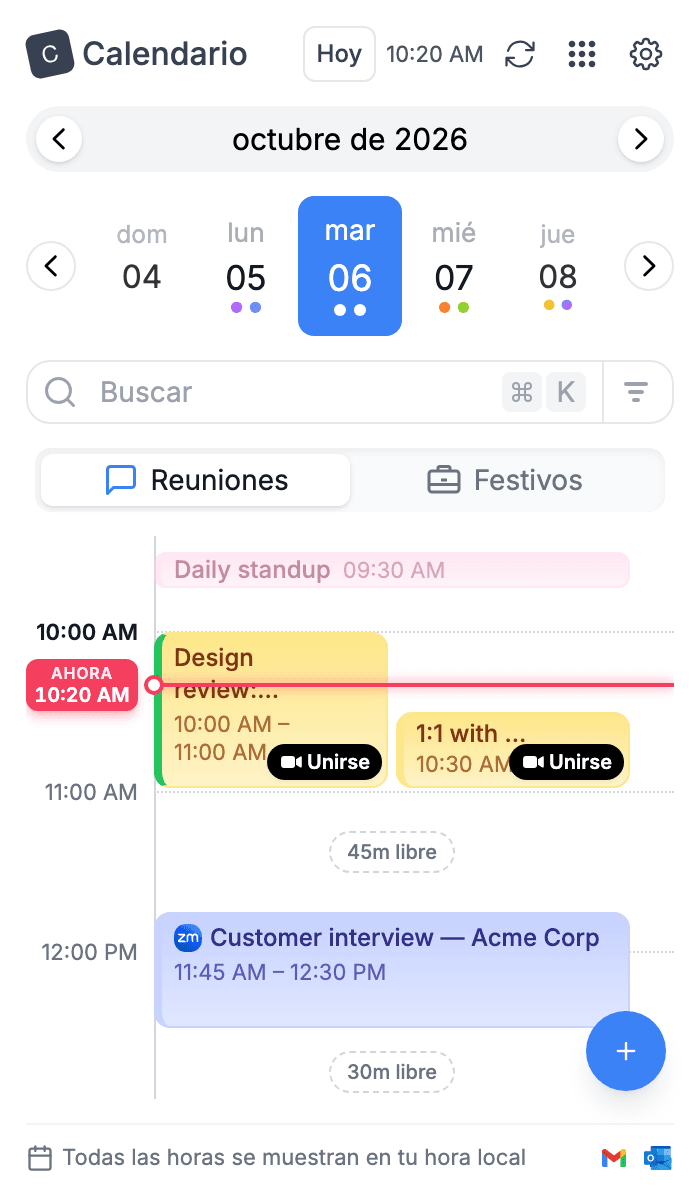
Español
That's the whole tour#
You've now seen everything Calendario does:
- Getting started
- Connecting accounts
- The timeline
- Customizing the timeline
- Drag and drop
- Event details and RSVPs
- Creating events
- Search
- Dates and holidays
- Reminders and the badge
- Popup, side panel and launcher
- Personalization (you are here)
If you haven't yet, add Calendario to Chrome. It's free. Feedback and ideas are always welcome. You'll find my contact links at the bottom of this page.