Tune the timeline: zoom, working hours, buffers and more
Shade the hours outside your working day, add prep time before meetings, color events by calendar and see several days side by side.
Part 4 of 12The Calendario GuideShow all partsHide
- 1Getting started with Calendario
- 2Connect Google, Outlook and Zoom — and more than one of each
- 3Read your day on the timeline
- 4Tune the timeline: zoom, working hours, buffers and more
- 5Drag to create, move, resize and copy events
- 6Event details, RSVPs and quick actions
- 7Create events without leaving the page
- 8Find anything with ⌘K search
- 9Jump to any date and see holidays
- 10Reminders that reach you, and a badge that tells you what's next
- 11Popup, side panel or floating launcher
- 12Make it yours: themes, colors, languages and time format
The timeline works well out of the box, but everyone's day is shaped differently. All of its display options live in one place.
Find the timeline options#
- 1
Open Settings
Click the gear icon in the popup's header.
- 2
Expand “Calendar display”
On the Appearance tab, open the Calendar display card.
- 3
Scroll to the timeline options
Below the main toggles you'll find Hour height, Days shown, Working hours, Buffer before events and Color events by.
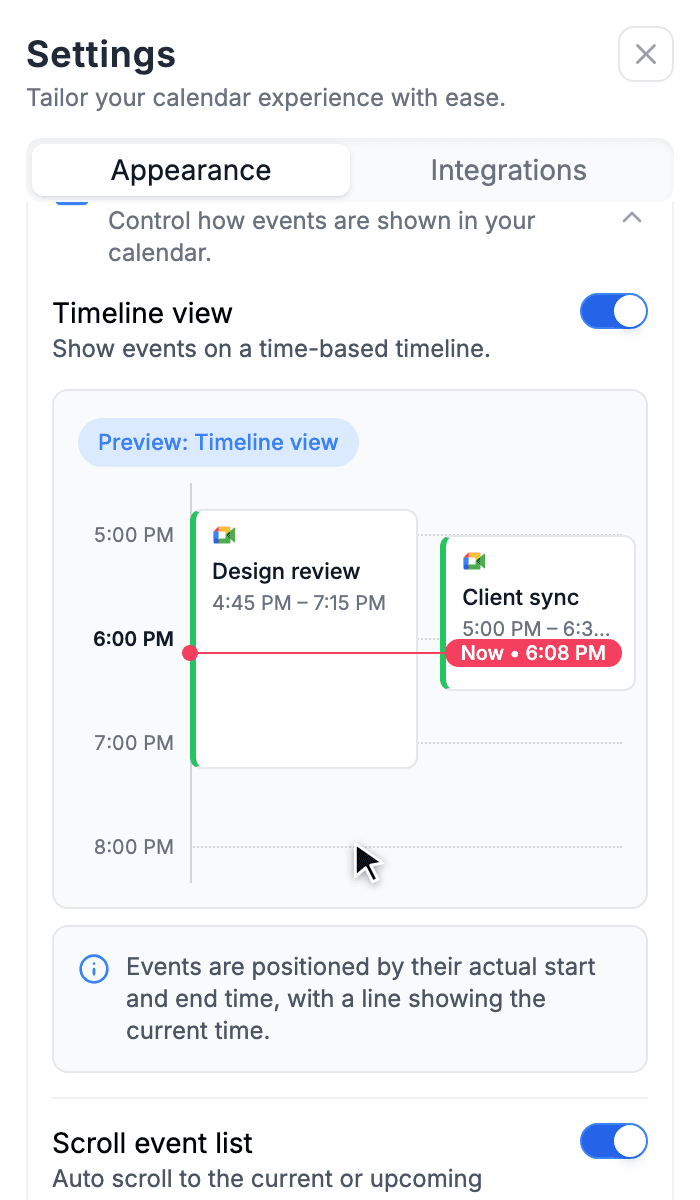
Main toggles
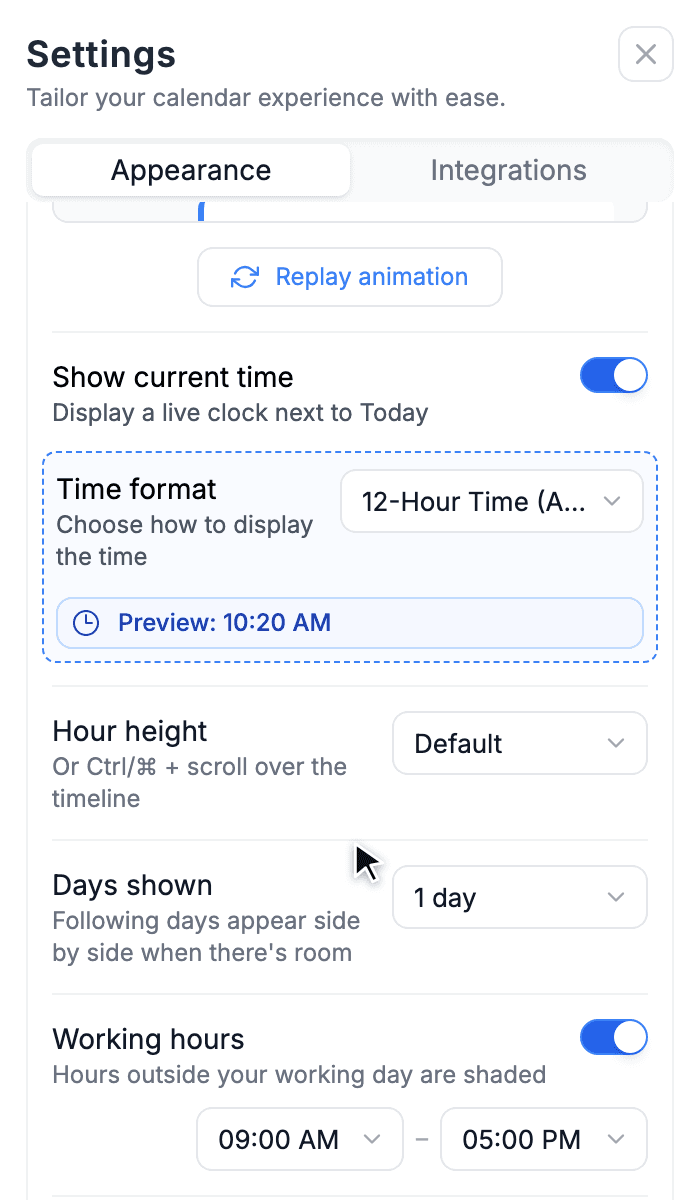
Timeline options
Here's what each option does.
| Option | What it changes | | --- | --- | | Timeline view | Turn it off to see an agenda list instead of the hour-by-hour timeline. | | Scroll event list | Opens the day scrolled to the current or next event. | | Show current time | Shows a live clock next to the Today button. | | Time format | 12-hour or 24-hour times everywhere, including the toolbar badge. | | Hour height | Compact, Default or Comfortable. Same as ⌘/Ctrl + scroll over the timeline. | | Days shown | 1, 2 or 3 days side by side, when there's room. | | Working hours | Shades the hours outside your working day. | | Buffer before events | Draws 5, 10 or 15 minutes of prep time before each event. | | Color events by | Each event's own color, or its calendar's color (with a legend at the top of the day). | | Expand multiple events | Lets several event cards stay open at once. |
Working hours#
Set when your working day starts and ends, and everything outside it is shaded. The difference between "a meeting at 8 AM" and "a meeting before my day even starts" becomes obvious.
Buffers before meetings#
Back-to-back meetings leave no time to prepare. Pick a buffer of 5, 10 or 15 minutes and Calendario draws a hatched strip of prep time before each event. When a meeting doesn't have that much free time in front of it, it's flagged so you can see where the day is too tight.
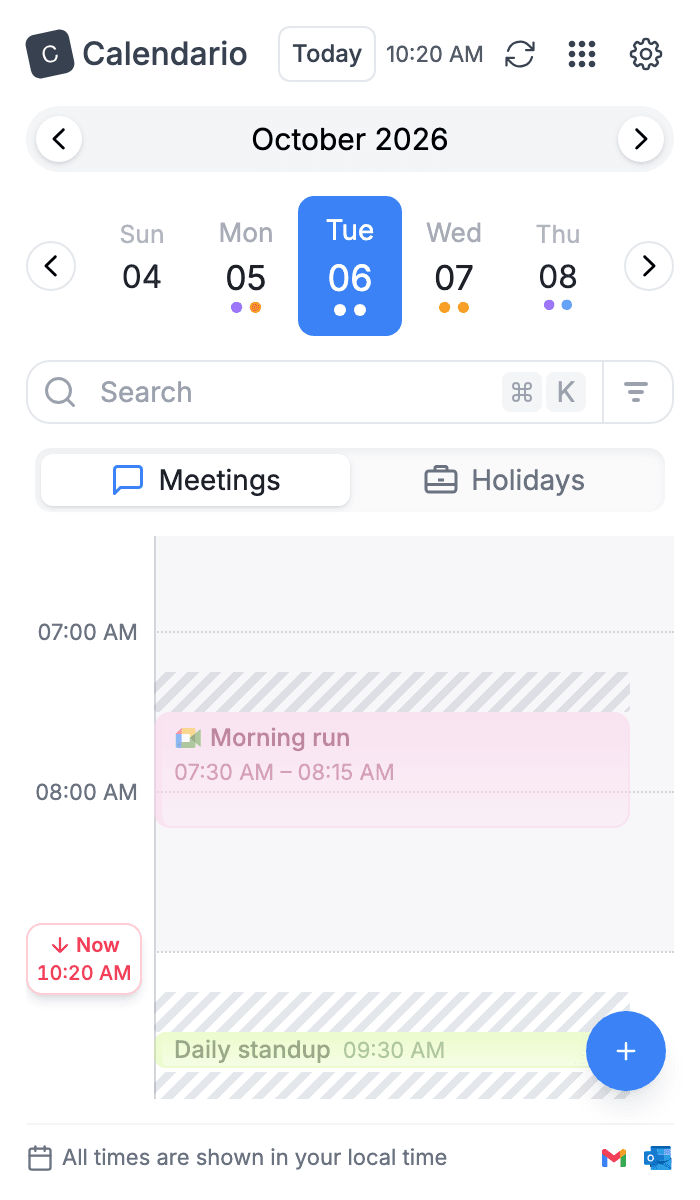
Color events by calendar#
By default every event gets its own color. Switch Color events by to Calendar and events take their calendar's color instead. A small legend at the top of the day lists which color belongs to which calendar. It's handy when you want to see work, personal and team calendars apart at a glance.
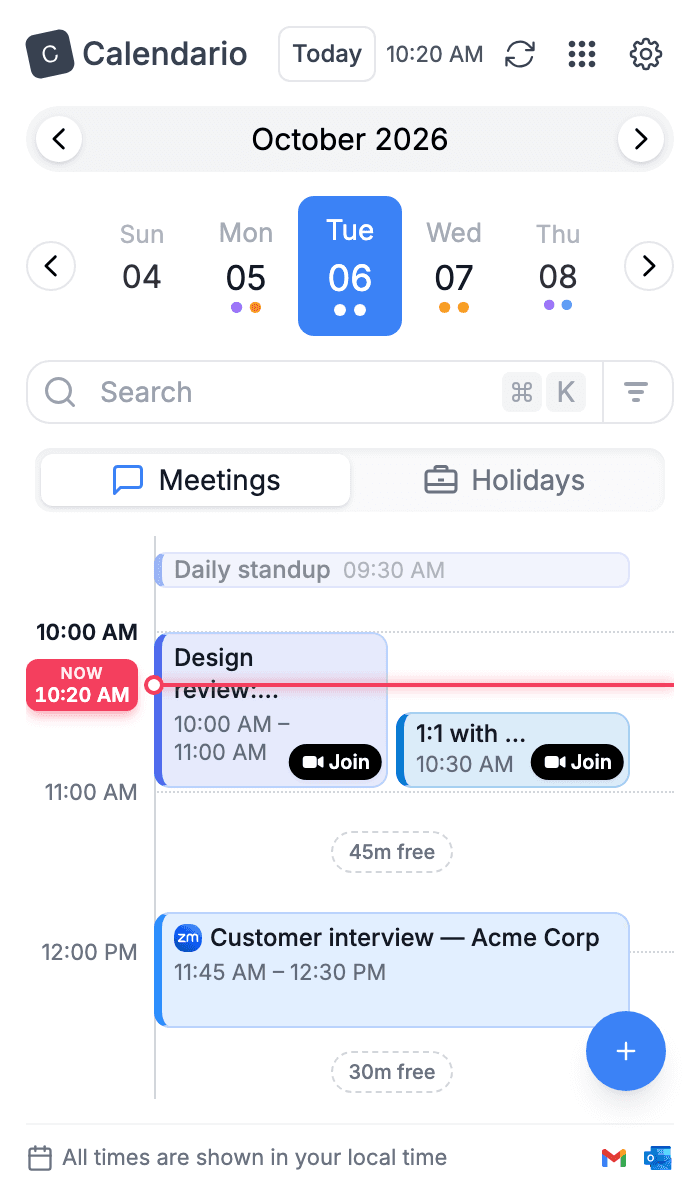
See several days side by side#
With Days shown set to 2 or 3, the following days appear next to today. You can then compare schedules or find a slot that works tomorrow. It needs room, so it shines in the side panel, which is wider than the popup.
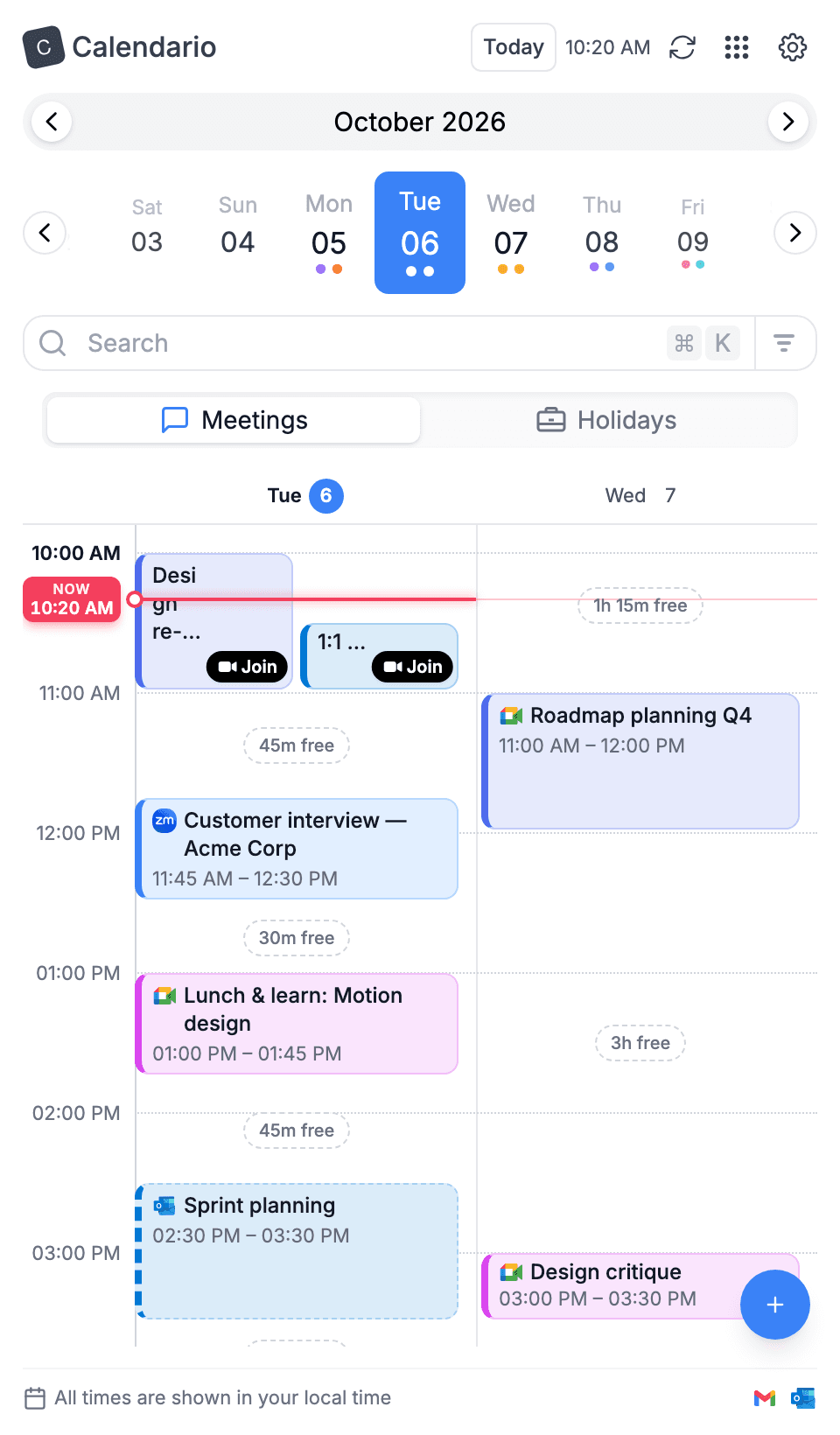
Light
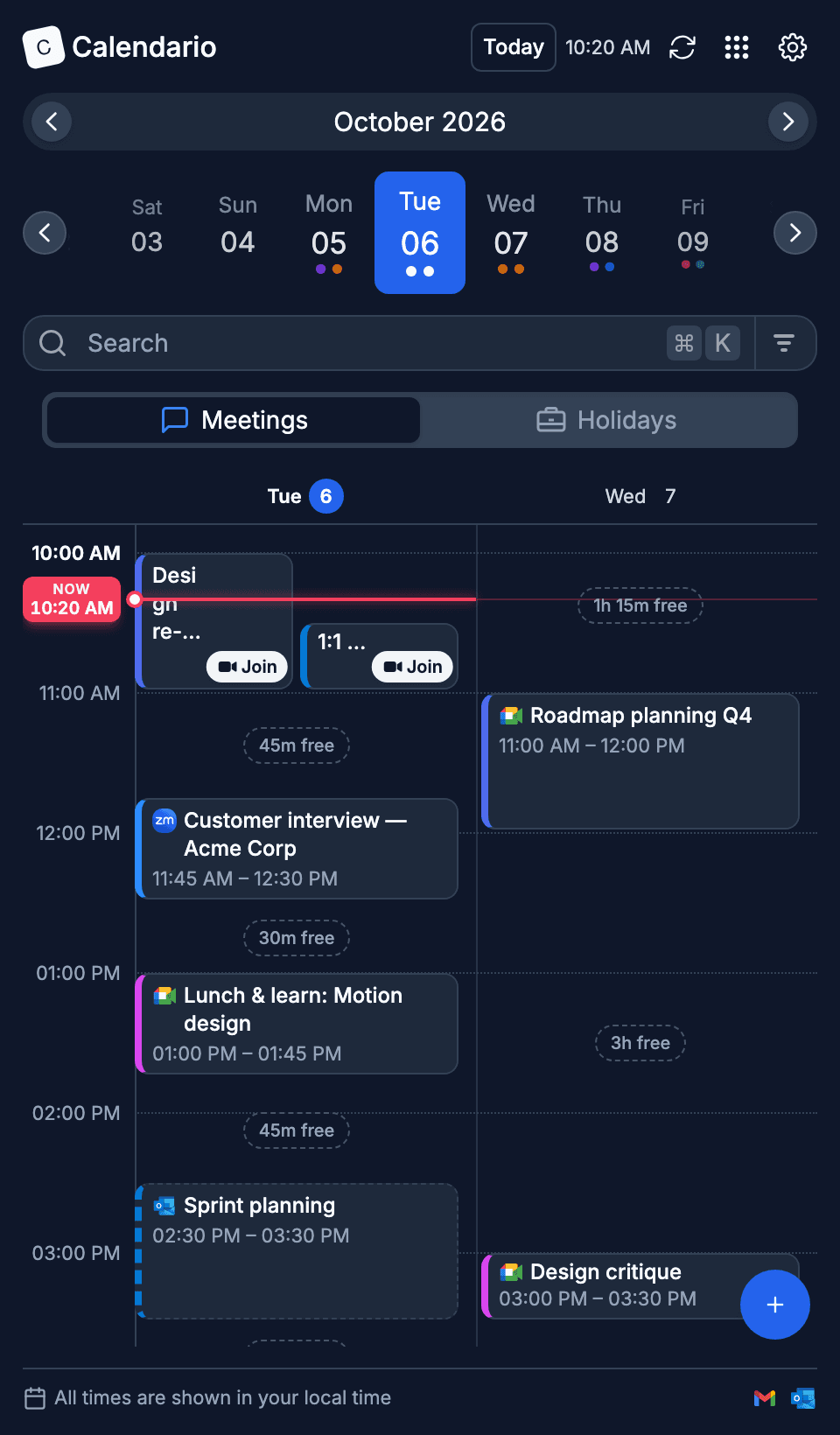
Dark
What's next#
Now that the timeline looks the way you want, learn to change it directly: drag to create, move, resize and copy events.