Create events without leaving the page
The full event composer: pick a calendar, set the time, catch conflicts before they happen, repeat, add a Meet or Teams link, invite guests and attach files.
Part 7 of 12The Calendario GuideShow all partsHide
- 1Getting started with Calendario
- 2Connect Google, Outlook and Zoom — and more than one of each
- 3Read your day on the timeline
- 4Tune the timeline: zoom, working hours, buffers and more
- 5Drag to create, move, resize and copy events
- 6Event details, RSVPs and quick actions
- 7Create events without leaving the page
- 8Find anything with ⌘K search
- 9Jump to any date and see holidays
- 10Reminders that reach you, and a badge that tells you what's next
- 11Popup, side panel or floating launcher
- 12Make it yours: themes, colors, languages and time format
Calendario's composer covers everything you'd normally open Google Calendar or Outlook for, inside the popup. It also checks your schedule for clashes before you save.
Open the composer#
There are three ways in:
- Press the round + button at the bottom right of the timeline.
- Drag across an empty part of the timeline to pick the time first.
- Click a free-time chip such as 30m free to fill that exact gap.
The last two are covered in part 5. The composer then slides up from the bottom.
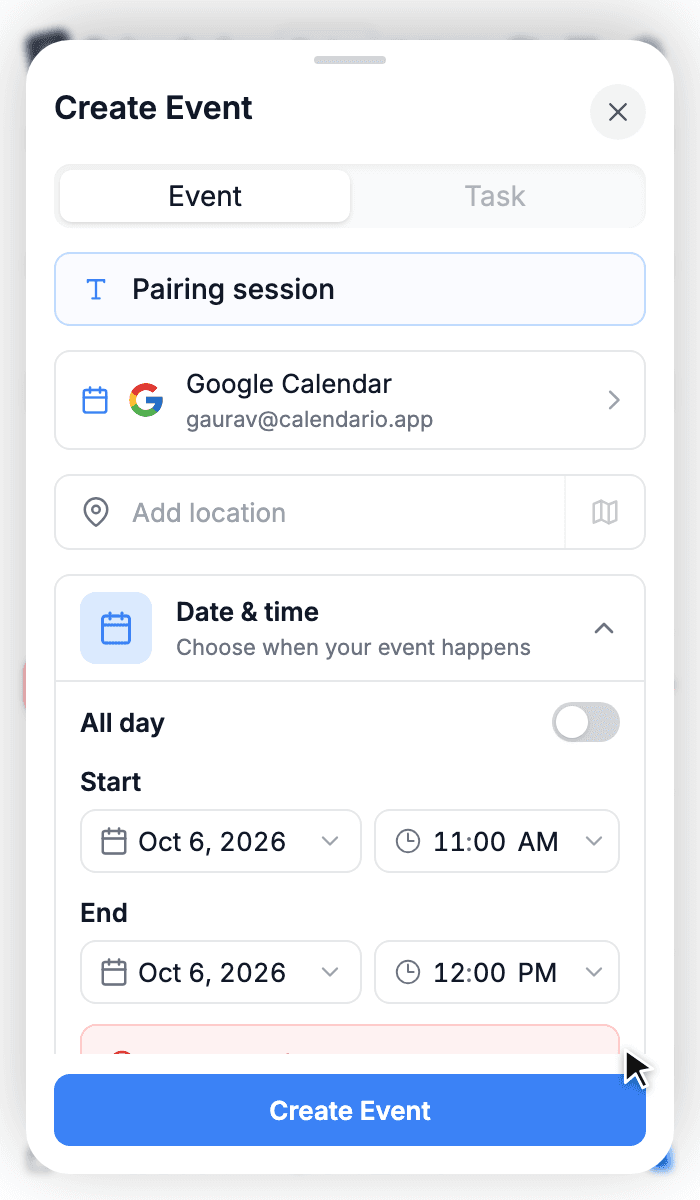
Create an event, step by step#
- 1
Give it a title
The title field is focused when the sheet opens, so you can start typing right away.
- 2
Choose the calendar
The calendar row shows which calendar and account the event goes into. Click it to pick any calendar you can write to, from any connected Google or Outlook account. Calendario remembers your last choice.
- 3
Add a location (optional)
Type an address or a place. With place suggestions enabled, picking one fills in the full address, and the map button opens it in Maps.
- 4
Set the date and time
Pick the start and end, or switch on All day. If the time clashes with something, you'll know immediately (see below).
- 5
Add the extras
Repeat, time zone, a video link, guests, a reminder, a description or attachments. All of them are optional.
- 6
Press Create Event
Confirm which calendar it's going into, and the event appears on your timeline.
Catch conflicts before they happen#
If the time you picked overlaps something already on your calendar, the date section turns red and says what it clashes with: Overlaps with an event — Customer interview, 11:45 AM–12:30 PM.
Press Find a time to see Suggested times based on that day's schedule. Each slot is marked Available or tells you what it conflicts with, and a Day preview shows the whole day so you can see where your event would land. Pick a slot and the composer updates.
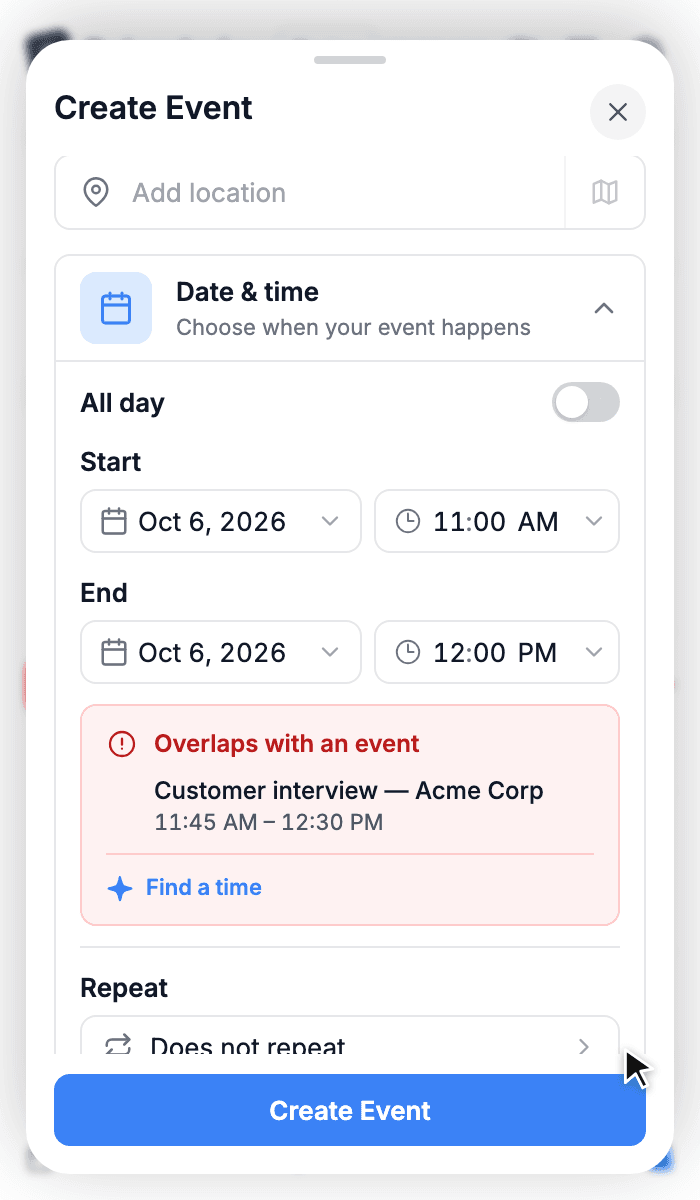
Conflict warning
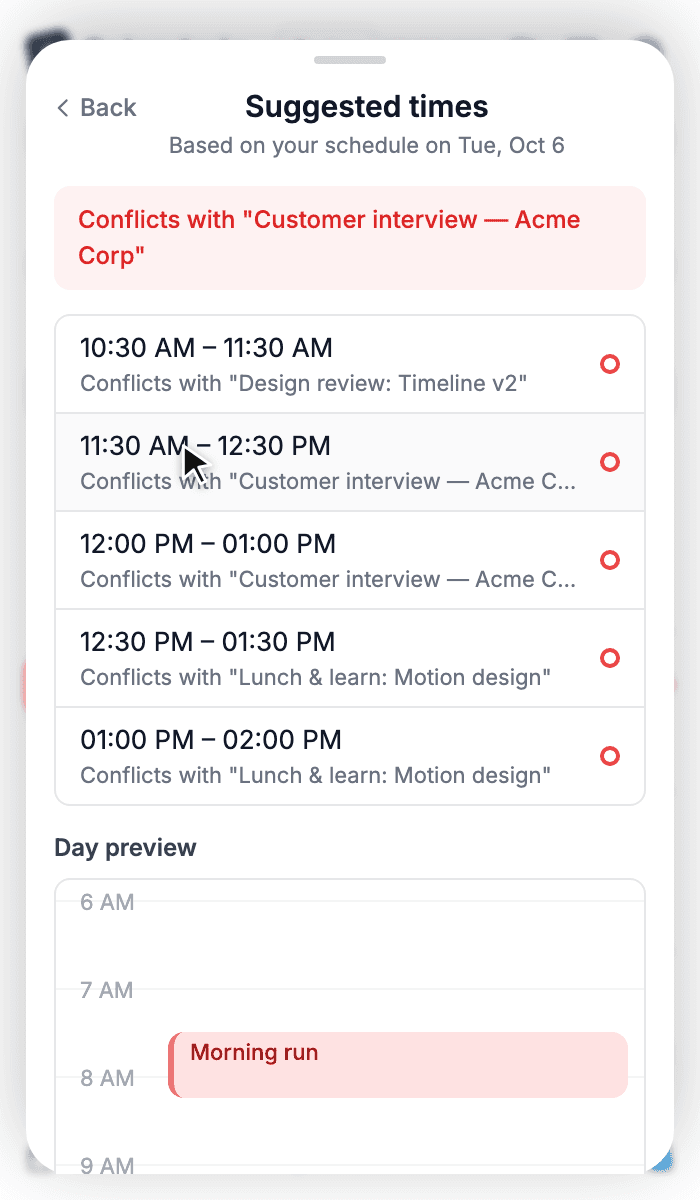
Find a time
Repeat it#
Repeat offers the usual patterns, worded for the date you picked: Daily, Weekly on Tuesday, Monthly on the first Tuesday, Annually on October 6 and Every weekday (Monday to Friday).
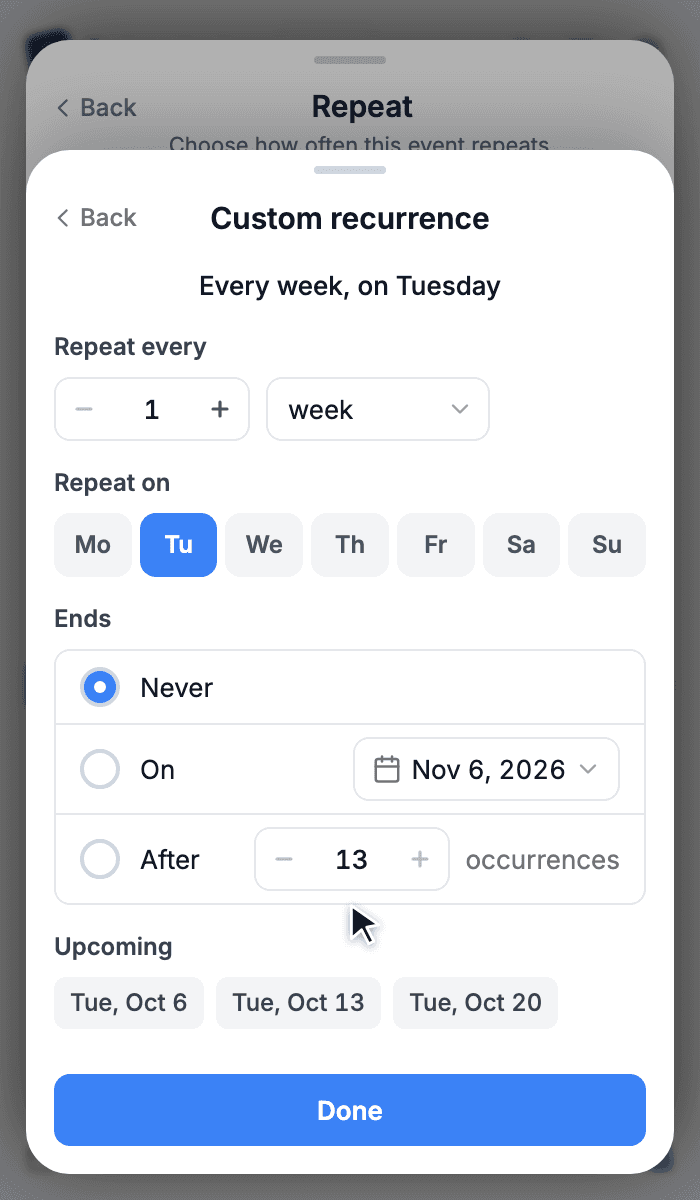
Need something else? Custom lets you repeat every n days, weeks, months or years, on specific weekdays. It can end on a date or after a number of occurrences, and you decide what happens in months that don't have the date.
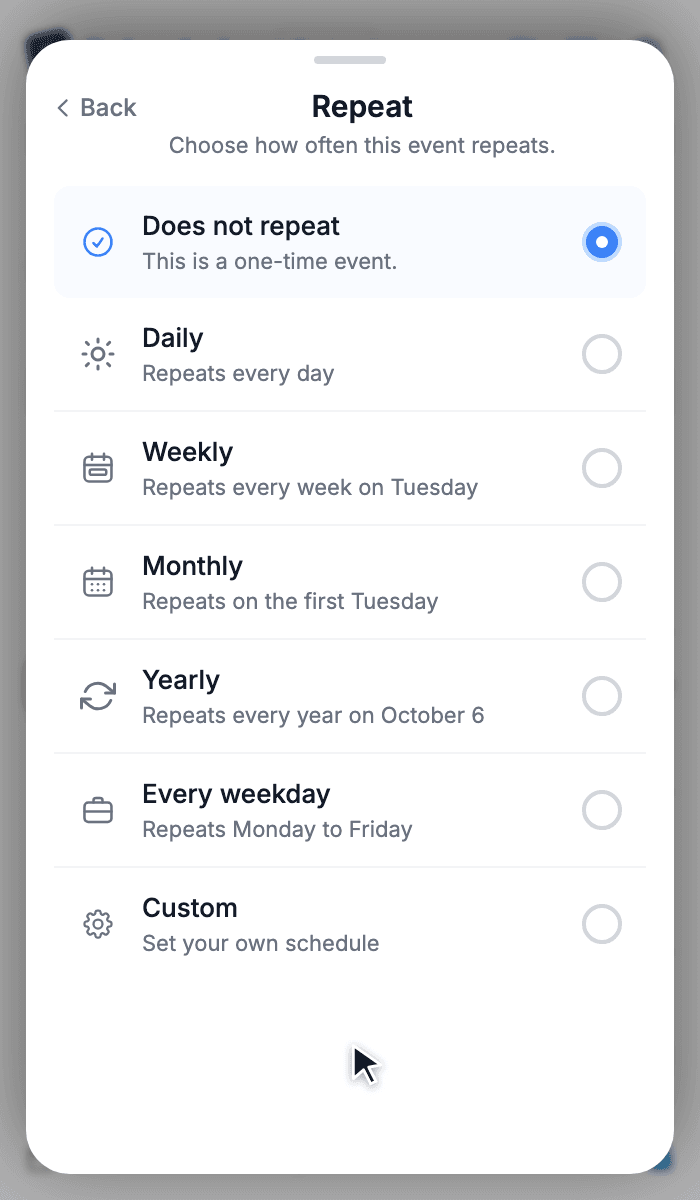
Repeat
Custom
Pick a time zone#
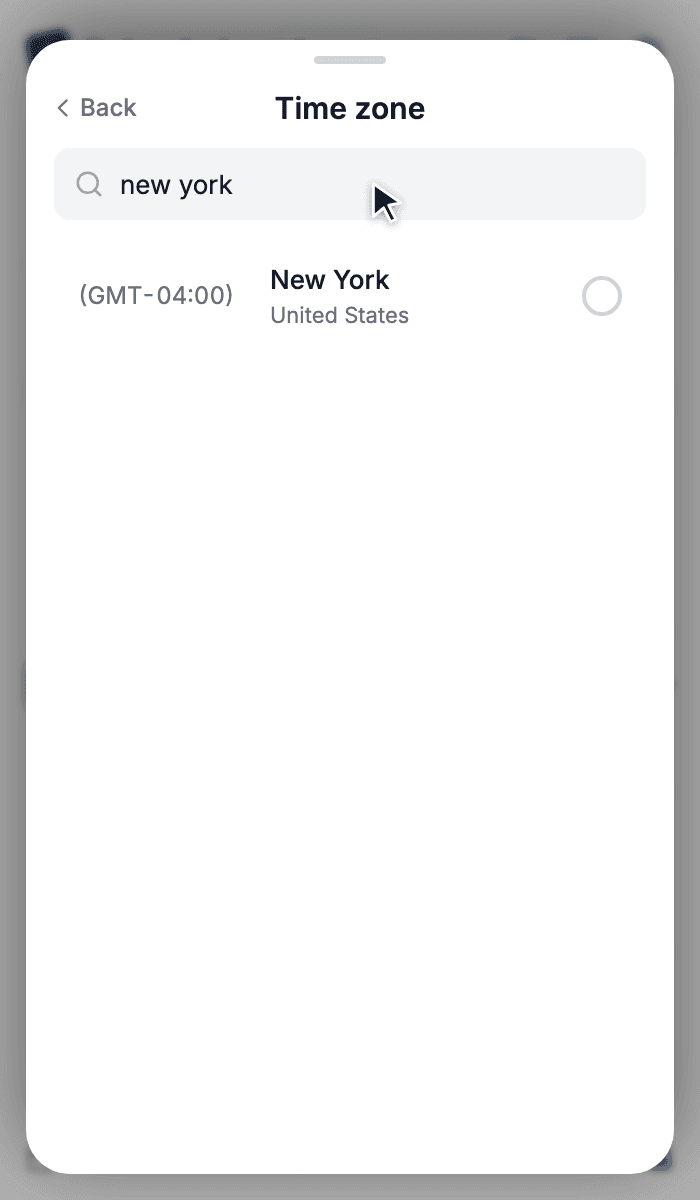
Scheduling across time zones? Open Time zone and search by city, zone name or GMT offset. Popular zones sit at the top and every zone is grouped by region. Attendees always see the event in their own time zone.
Video calls, guests, reminders and files#
Under Additional details:
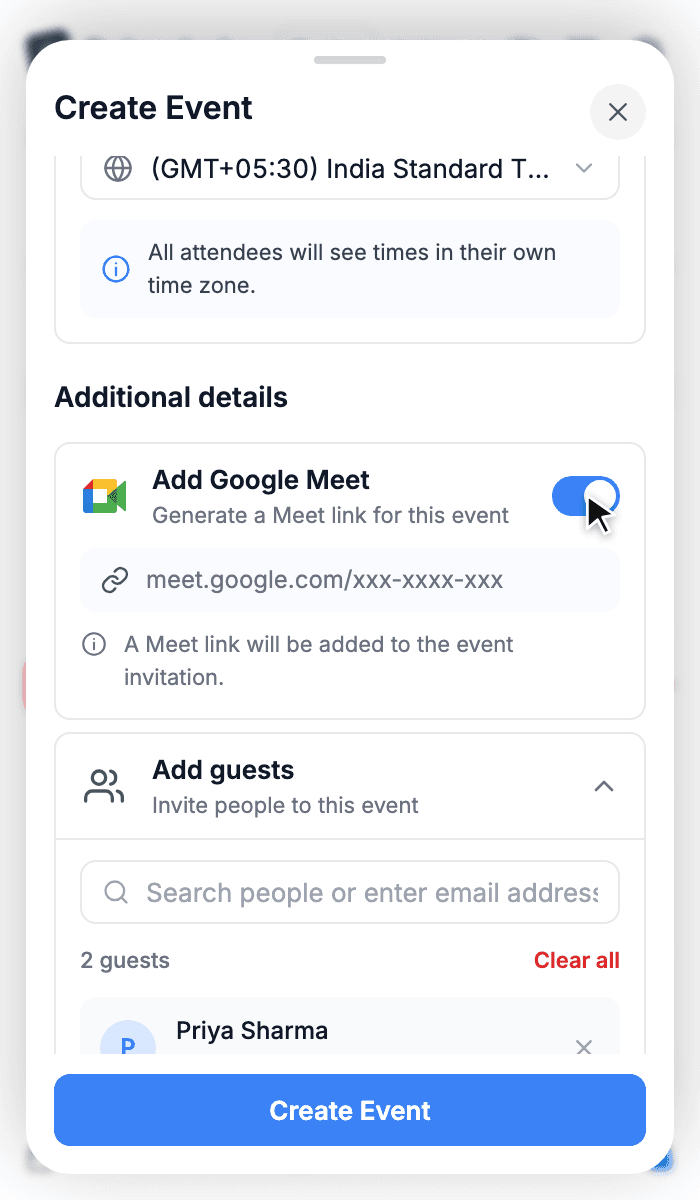
- Add Google Meet (Google calendars) or Add Teams meeting (Outlook calendars) generates a meeting link when the event is created.
- Add guests: search your contacts or type an email address. You can mark guests as optional or import a list from a file.
- Add notification sets how long before the event you're reminded.
- Add description opens a rich-text editor with bold, italic, underline, lists and links.
- Add attachments uploads up to 5 files, 3 MB each.
Editing later#
To change an event afterwards, open it and choose Edit event from the ⋯ menu. You get the same composer, filled in. For a recurring event, Calendario asks whether to change just this occurrence or the whole series. Quick time changes are even faster: just drag it.
What's next#
With lots of events across lots of calendars, finding one fast matters. Part 8 covers ⌘K search.