Jump to any date and see holidays
Move around your calendar with the day strip, the month and year pickers and the Today button, and keep public holidays in view.
Part 9 of 12The Calendario GuideShow all partsHide
- 1Getting started with Calendario
- 2Connect Google, Outlook and Zoom — and more than one of each
- 3Read your day on the timeline
- 4Tune the timeline: zoom, working hours, buffers and more
- 5Drag to create, move, resize and copy events
- 6Event details, RSVPs and quick actions
- 7Create events without leaving the page
- 8Find anything with ⌘K search
- 9Jump to any date and see holidays
- 10Reminders that reach you, and a badge that tells you what's next
- 11Popup, side panel or floating launcher
- 12Make it yours: themes, colors, languages and time format
Most of the time you care about today. When you need another day, Calendario has a few fast ways to get there.
The day strip#
The row of days under the month name is the quickest way around:
- Click a day to open it.
- Use the arrows on either side to step to earlier or later days.
- Colored dots under a day show that something is scheduled, so busy and empty days stand out.
- The month bar above it has arrows to move a whole month at a time.
The month and year picker#
Click the grid icon in the header to open a full month calendar. Click any date to jump to it, use the arrows to change month, or press Today inside the picker to come back. Click the year at the top to switch to a year view and jump months at a time.
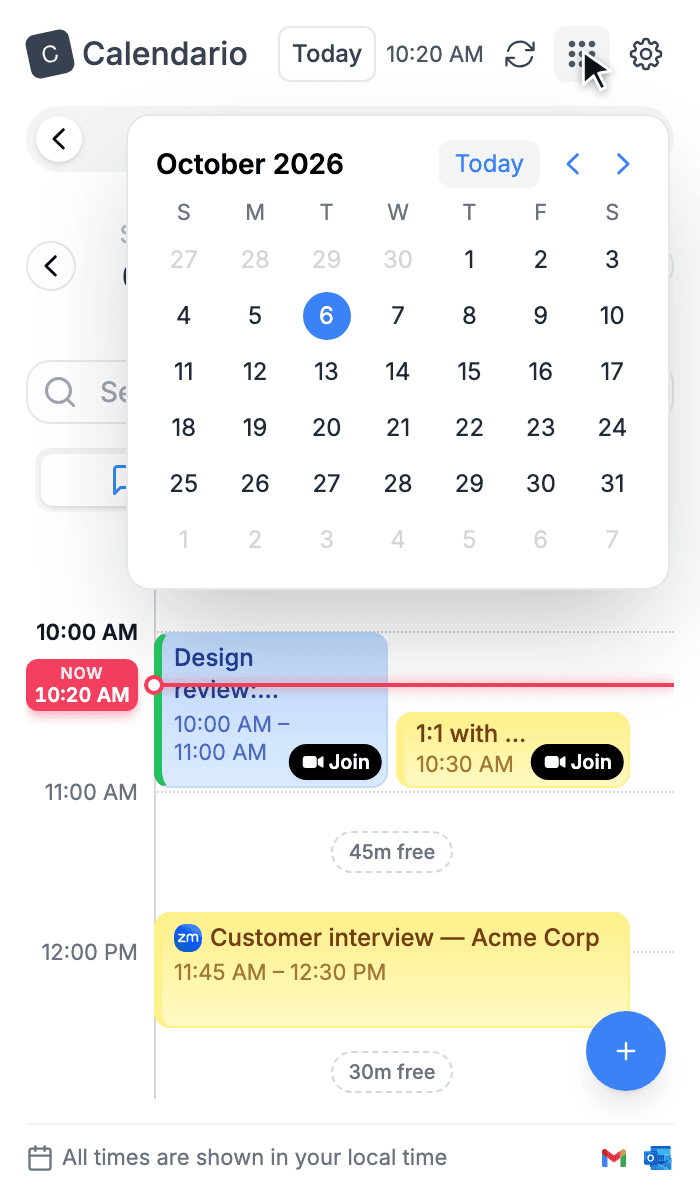
Month
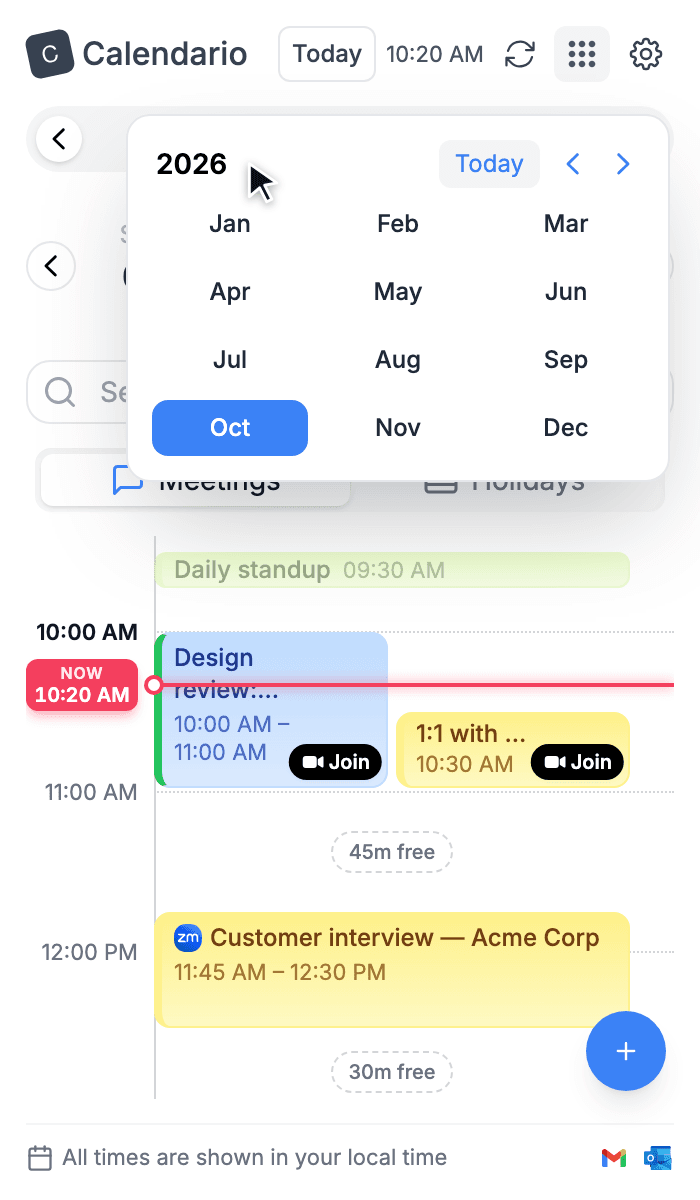
Year
Back to today#
Wherever you've wandered, the Today button in the header brings you back to the current day.
Holidays#
Switch the tab under the search bar from Meetings to Holidays to see the public holidays coming up, each on its own card with its date and a short greeting. Holidays load for the month you're viewing, so moving to another month shows that month's holidays.
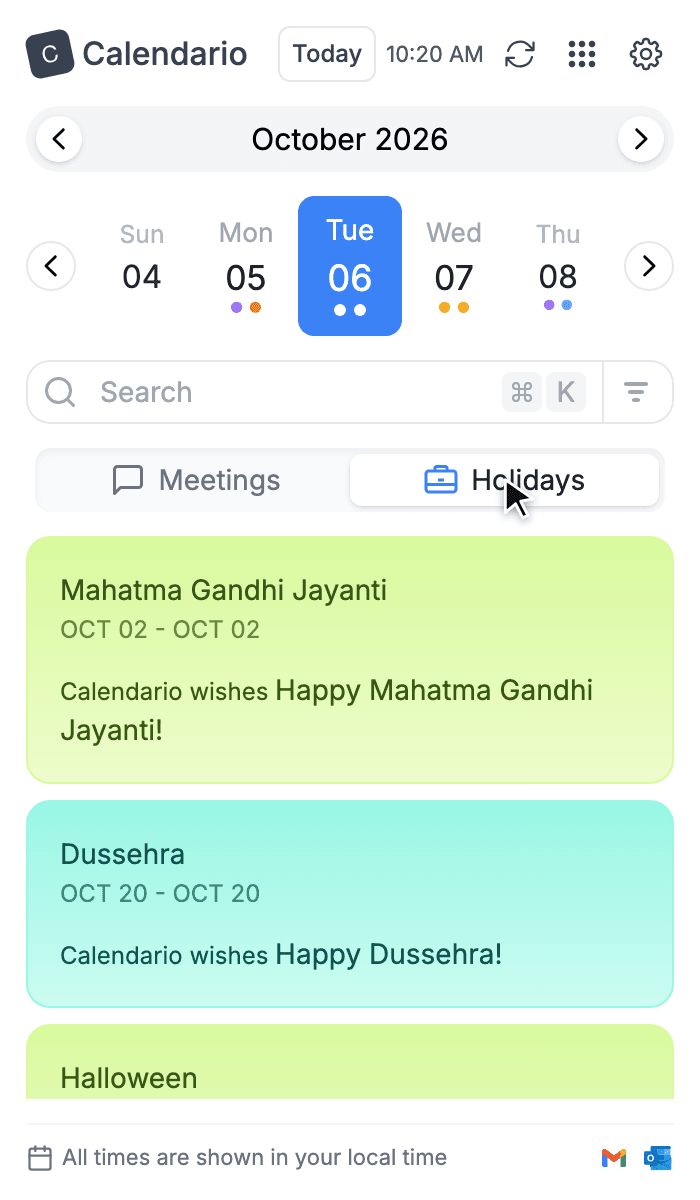
Light
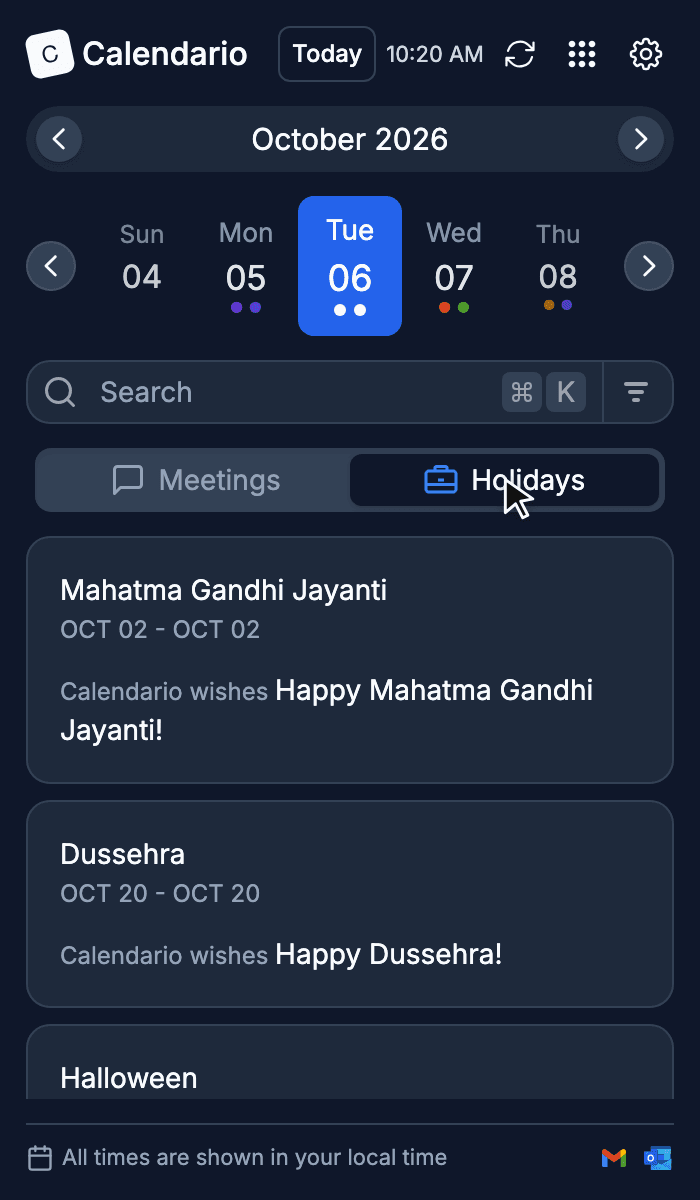
Dark
What's next#
Navigating is one thing; not missing anything is another. Part 10 covers reminders and the toolbar badge.