Popup, side panel or floating launcher
Open Calendario as a quick popup, keep it docked in Chrome's side panel next to your work, or reach it from a floating launcher on any page.
Part 11 of 12The Calendario GuideShow all partsHide
- 1Getting started with Calendario
- 2Connect Google, Outlook and Zoom — and more than one of each
- 3Read your day on the timeline
- 4Tune the timeline: zoom, working hours, buffers and more
- 5Drag to create, move, resize and copy events
- 6Event details, RSVPs and quick actions
- 7Create events without leaving the page
- 8Find anything with ⌘K search
- 9Jump to any date and see holidays
- 10Reminders that reach you, and a badge that tells you what's next
- 11Popup, side panel or floating launcher
- 12Make it yours: themes, colors, languages and time format
By default, clicking the toolbar icon opens Calendario as a popup, which is perfect for a quick glance. On a day full of meetings, though, you may want it to stay open. Calendario gives you three ways in.
1. The popup#
Click the toolbar icon and Calendario drops down over the page. Click anywhere else and it closes. It's the fastest way to check what's next.
2. The side panel#
The side panel docks Calendario on the right side of the browser window, next to the page. It stays open while you read, write or join calls, so your day is always in view.
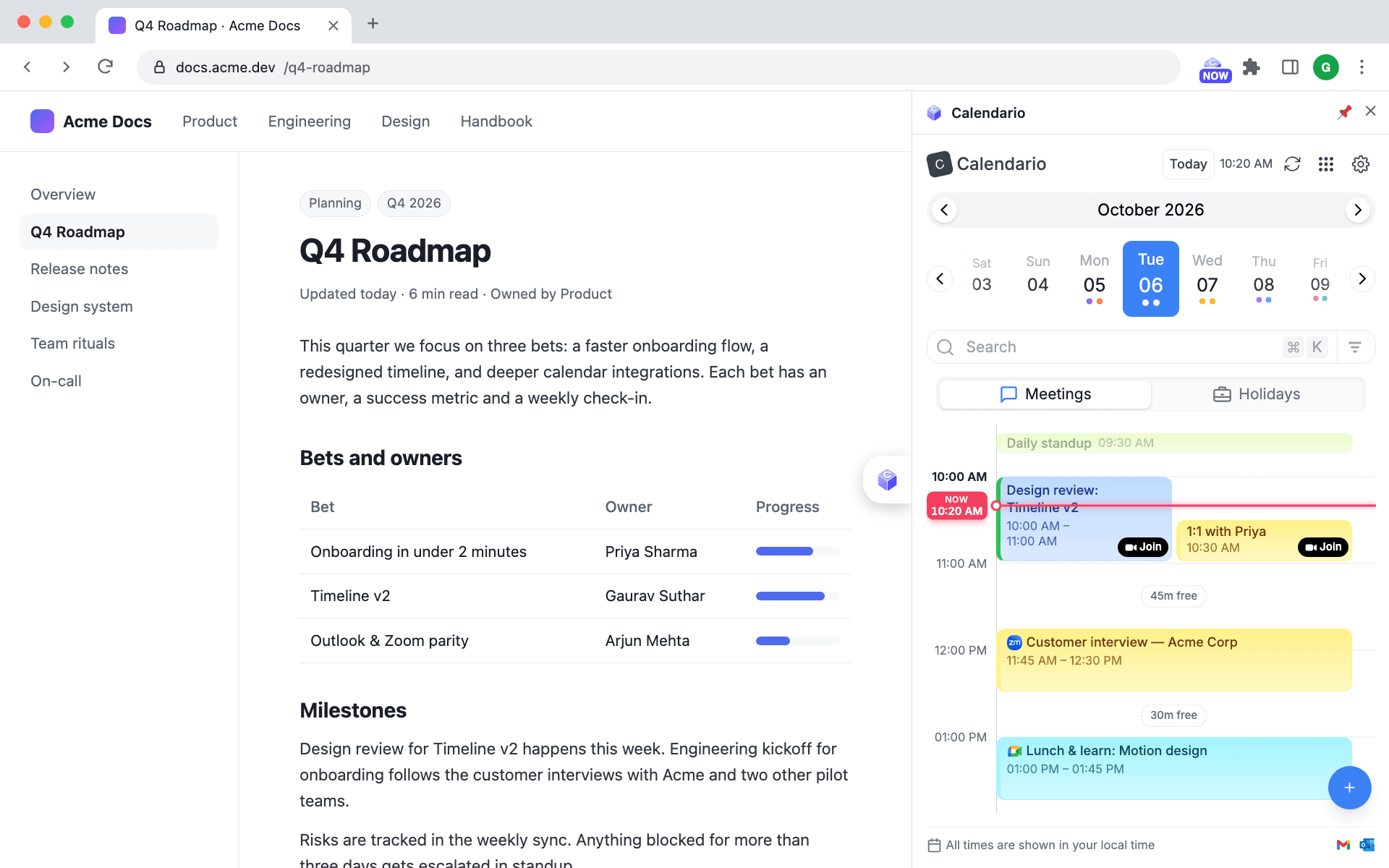
The side panel is wider than the popup, so it can show two or three days side by side.
Switch to the side panel#
- 1
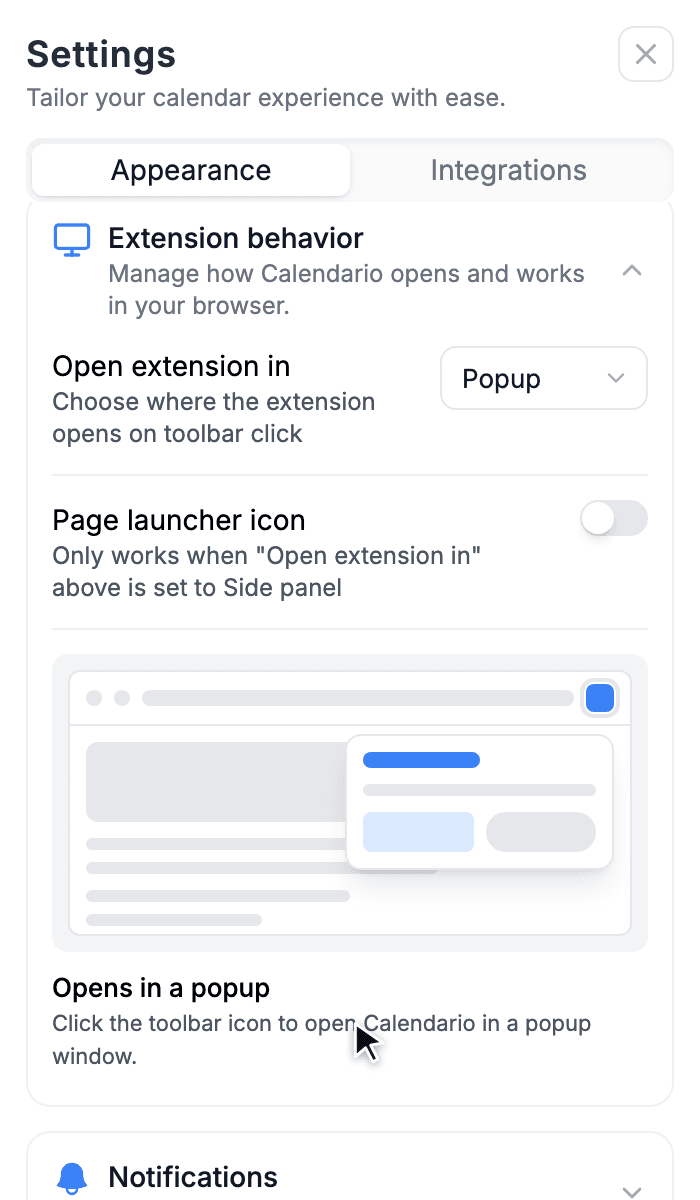
Open Settings → Appearance → Extension behavior
Expand the Extension behavior card.
- 2
Set “Open extension in” to Side panel
From now on, the toolbar icon opens and closes the side panel instead of the popup. A small animated preview shows how each option behaves.
3. The floating launcher#
With the side panel selected, you can also turn on the Page launcher icon: a small Calendario button on the right edge of every web page. Click it to open the side panel, with no need to reach for the toolbar.
- Move it. Hover it to reveal a grip, then drag it up or down the edge. Calendario remembers where you put it.
- Hide it on certain sites. Under Exclude websites, list the domains where the launcher shouldn't appear, such as video sites or tools with their own right-hand controls. A sensible list is suggested to start with, and you can reset to it any time.
Which one should I use?#
| If you… | Use | | --- | --- | | Check your schedule a few times a day | Popup | | Live in meetings and want your day always visible | Side panel | | Rarely look at the toolbar | Side panel + launcher |
The badge and reminder cards from part 10 work the same in every mode.
What's next#
The final part covers making Calendario look and feel like yours: themes, accent colors, languages and time format.