Connect Google, Outlook and Zoom — and more than one of each
Add every calendar account you use, choose which of their calendars show up, and keep everything in sync.
Part 2 of 12The Calendario GuideShow all partsHide
- 1Getting started with Calendario
- 2Connect Google, Outlook and Zoom — and more than one of each
- 3Read your day on the timeline
- 4Tune the timeline: zoom, working hours, buffers and more
- 5Drag to create, move, resize and copy events
- 6Event details, RSVPs and quick actions
- 7Create events without leaving the page
- 8Find anything with ⌘K search
- 9Jump to any date and see holidays
- 10Reminders that reach you, and a badge that tells you what's next
- 11Popup, side panel or floating launcher
- 12Make it yours: themes, colors, languages and time format
Most people don't live in a single calendar. You might have a work Outlook calendar, a personal Gmail one and Zoom meetings scheduled outside both. Calendario merges all of them into one day view, and you can connect several accounts of each provider too.
Where accounts live#
Every connection is managed from one place.
- 1
Open Settings
Click the gear icon in the top-right corner of the popup.
- 2
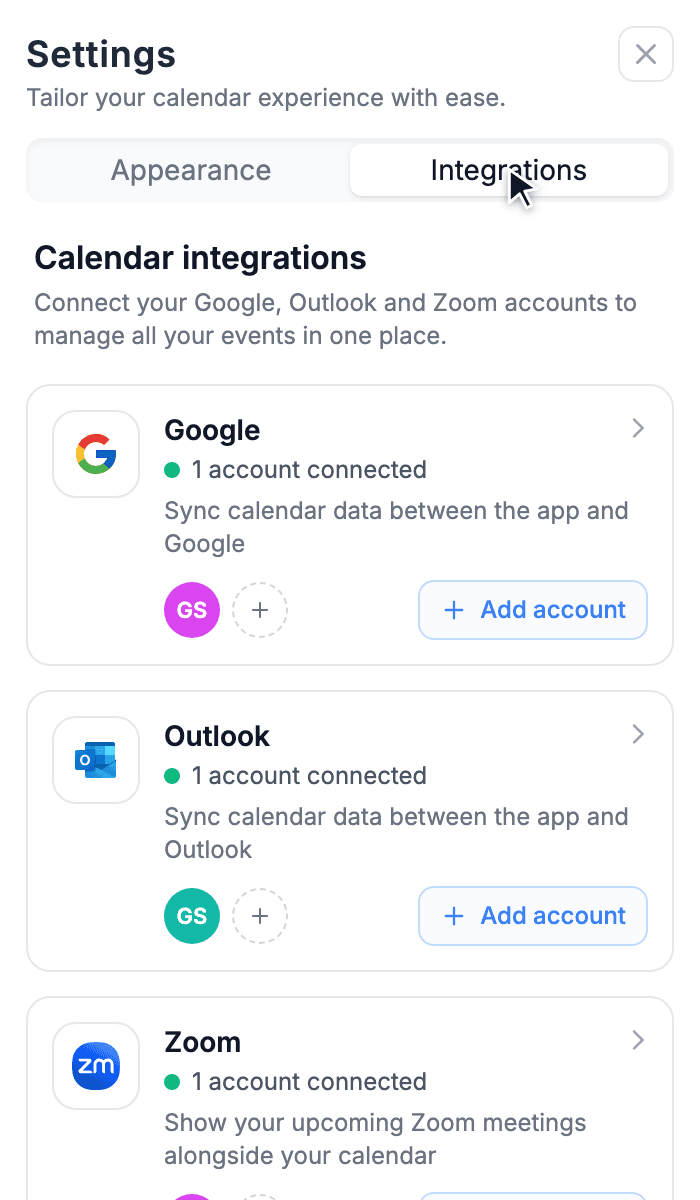
Switch to the Integrations tab
You'll see a card for Google, Outlook and Zoom, each showing how many accounts are connected and an avatar for each one.
Add another account#
Each provider card has its own Add account button. Click it, sign in to the extra account in the window that opens, and it joins the list. Its events merge into the same timeline straight away.
Choose which calendars you see#
An account often holds more than one calendar: a shared team calendar, a family calendar, birthdays. You decide which of them appear in Calendario.
- 1
Open the provider
In Integrations, click the provider card (for example Google) to see its accounts.
- 2
Open an account
Click the account to see its page: profile, sync status and the list of its calendars.
- 3
Toggle calendars on or off
Under Connected Calendars, flip the switch next to any calendar. Less-used calendars sit behind Show more calendars.
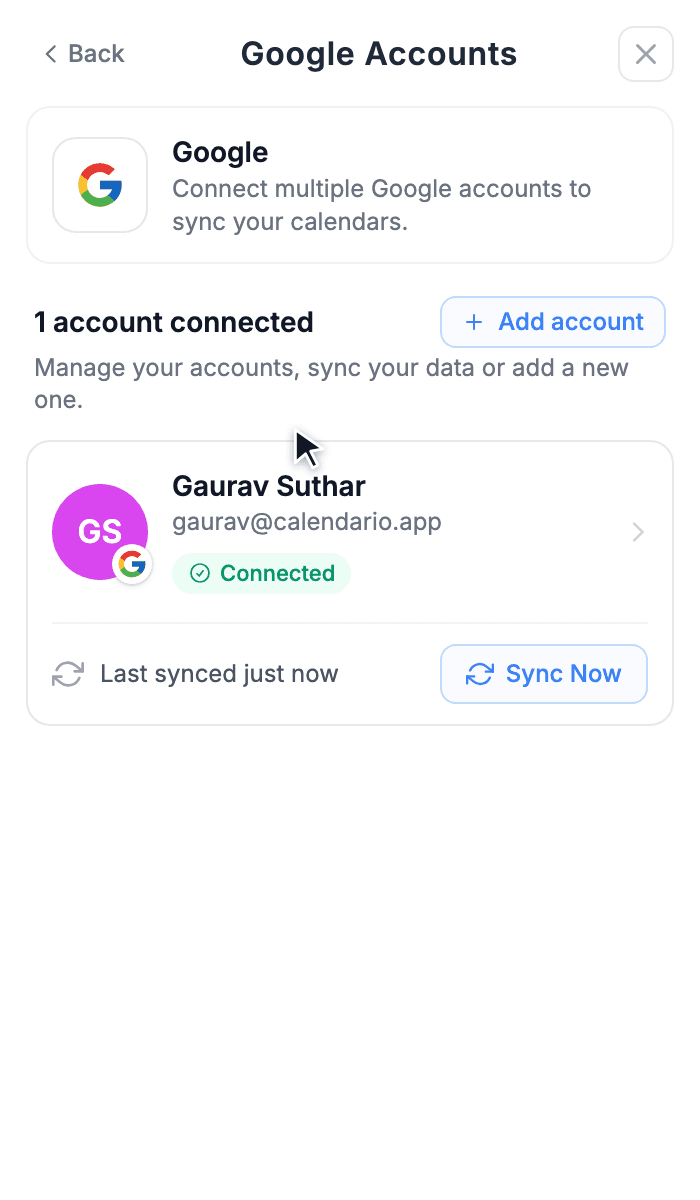
Provider page
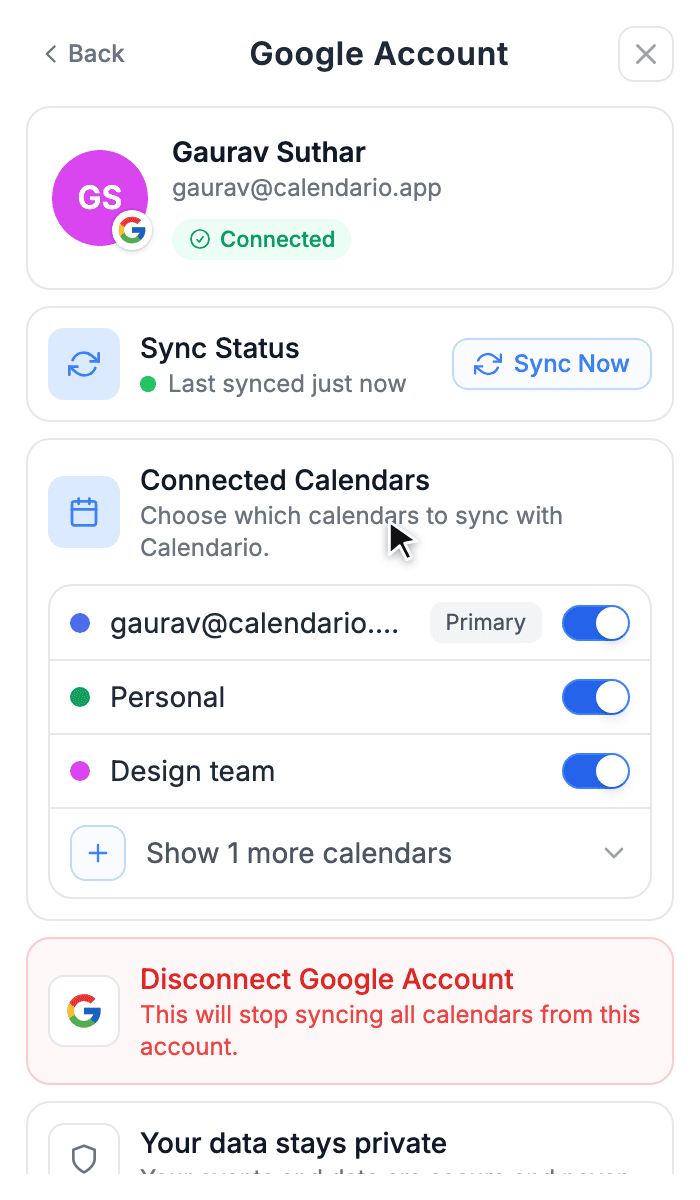
Account page
Keep everything in sync#
Calendario refreshes in the background, so new invites and edits made elsewhere show up on their own. When you want them right now:
- Press Sync Now on an account's page to refresh just that account. The Last synced line tells you when it last ran.
- Press the circular arrows in the popup's header to sync every account at once.
If a provider ever needs you to sign in again (say, after you change your password), its card says Reconnect needed instead of showing a green dot.
Disconnect an account#
Near the bottom of an account's page, Disconnect Google Account (or Outlook, or Zoom) removes it and stops syncing all of its calendars. You can also Disconnect all accounts for a provider from its accounts page.
What's next#
With your calendars connected, it's time to read your day on the timeline.