Event details, RSVPs and quick actions
Open any event to see who's coming, join the call, answer an invite, grab the link or attachments, and delete one event — or many at once.
Part 6 of 12The Calendario GuideShow all partsHide
- 1Getting started with Calendario
- 2Connect Google, Outlook and Zoom — and more than one of each
- 3Read your day on the timeline
- 4Tune the timeline: zoom, working hours, buffers and more
- 5Drag to create, move, resize and copy events
- 6Event details, RSVPs and quick actions
- 7Create events without leaving the page
- 8Find anything with ⌘K search
- 9Jump to any date and see holidays
- 10Reminders that reach you, and a badge that tells you what's next
- 11Popup, side panel or floating launcher
- 12Make it yours: themes, colors, languages and time format
Click any event on the timeline and it opens in place, without losing your spot in the day. Everything you usually need from an event is right there.
Open an event#
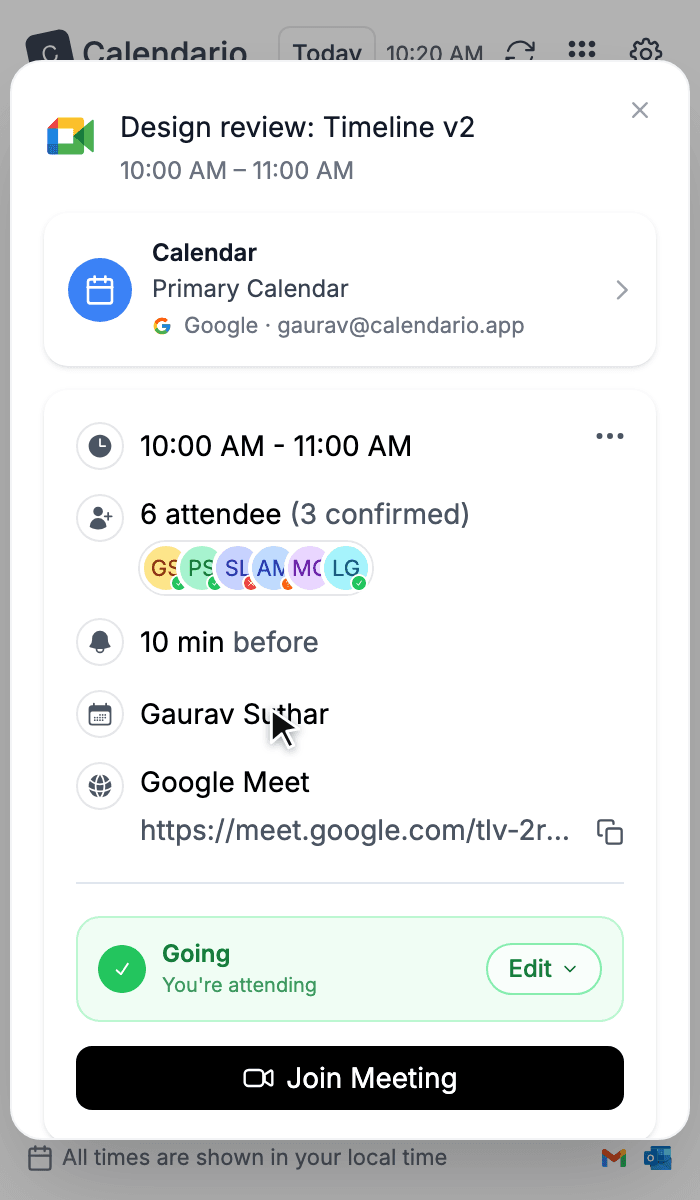
The card shows, from top to bottom:
- Calendar — which calendar and which account the event belongs to.
- Time — start and end.
- Attendees — how many are invited and how many have confirmed, with their avatars.
- Reminder — how long before the event you'll be notified.
- Organizer — who set it up.
- Meeting link — Google Meet, Teams or Zoom, with a copy button.
- Your response — Going, Maybe or Not going, with Edit to change it.
- Join Meeting — a big button that opens the call.
If other events overlap this one, a row at the bottom says how many and opens them all.
See every detail#
For the full picture, use the ⋯ menu on the card and choose Show Event Detail.
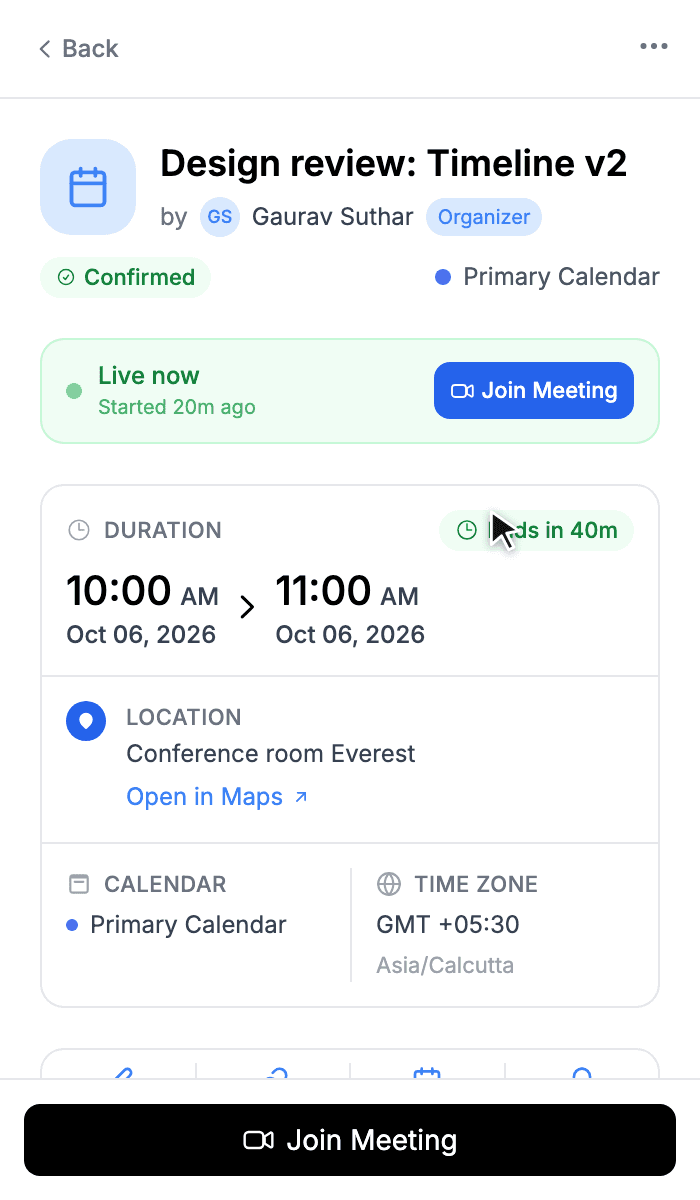
Overview
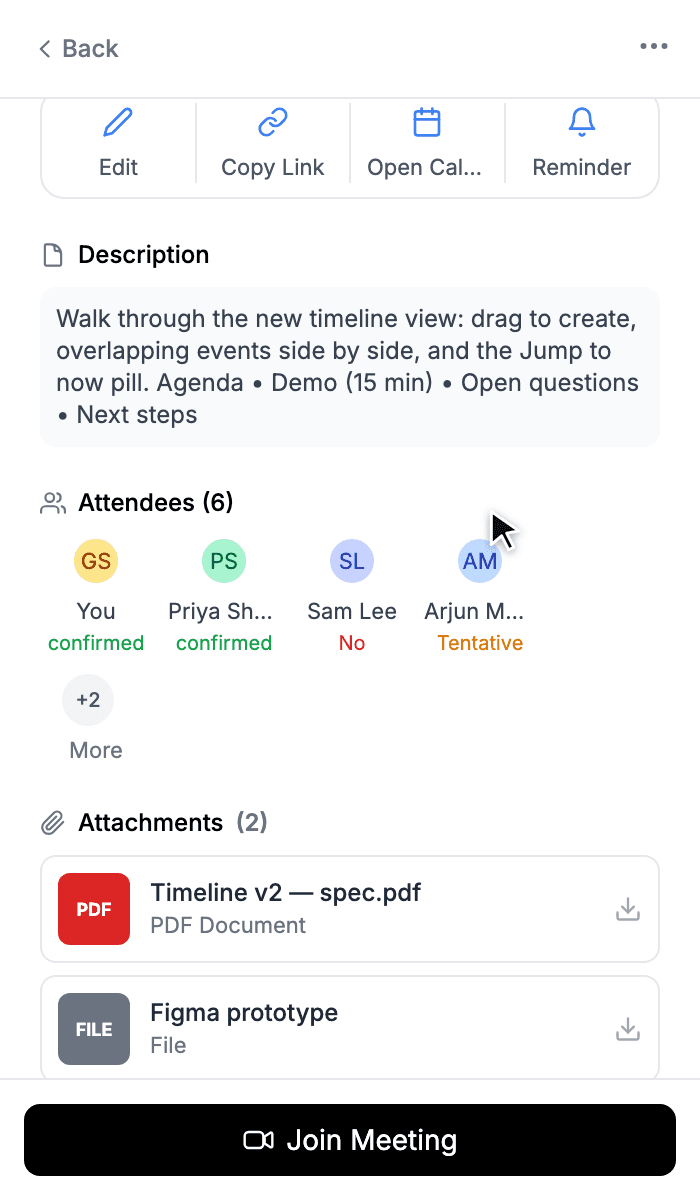
Description & attendees
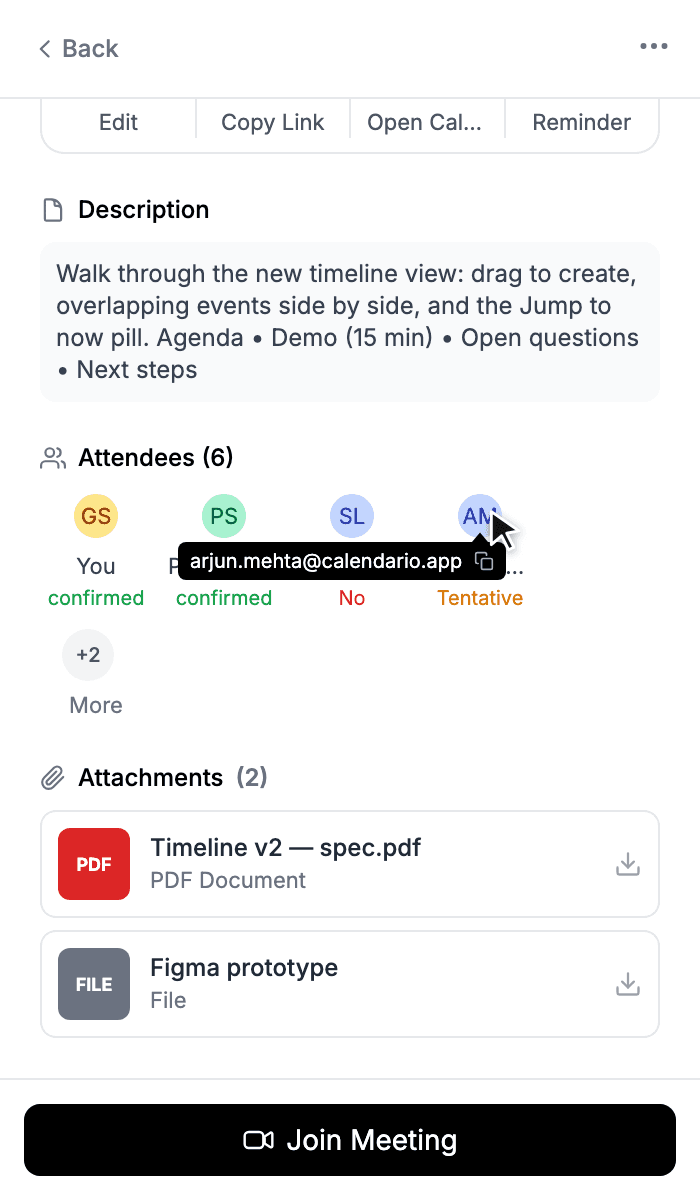
Attachments
The detail page adds:
- Live status: Live now · Started 20m ago, or how long until it starts, with Join Meeting alongside.
- Duration, with a countdown such as Ends in 40m.
- Location, with Open in Maps.
- Time zone of the event.
- Quick actions: Edit, Copy Link (the event's shareable link), Open Calendar (opens it in Google Calendar or Outlook on the web) and Reminder.
- Description, with formatting and links kept.
- Attendees with each person's answer: confirmed, tentative, declined or no reply.
- Attachments, each with a download button.
Answer an invitation#
When someone invites you, the card asks Respond to invitation instead of showing your status.
- 1
Open the invite
Click the event. Unanswered invites are drawn with a dashed outline on the timeline, so they're easy to spot.
- 2
Press RSVP
Choose Yes, Maybe or No. Your answer is sent straight to Google or Outlook, and the organizer sees it like any other reply.
- 3
Change your mind any time
The card now shows your answer (for example Going). Press Edit next to it to answer differently.
For a recurring meeting, Calendario then asks whether your answer applies to this event or all events in the series.
Delete an event#
Open the ⋯ menu and choose Delete Event. For recurring events you choose exactly what goes:
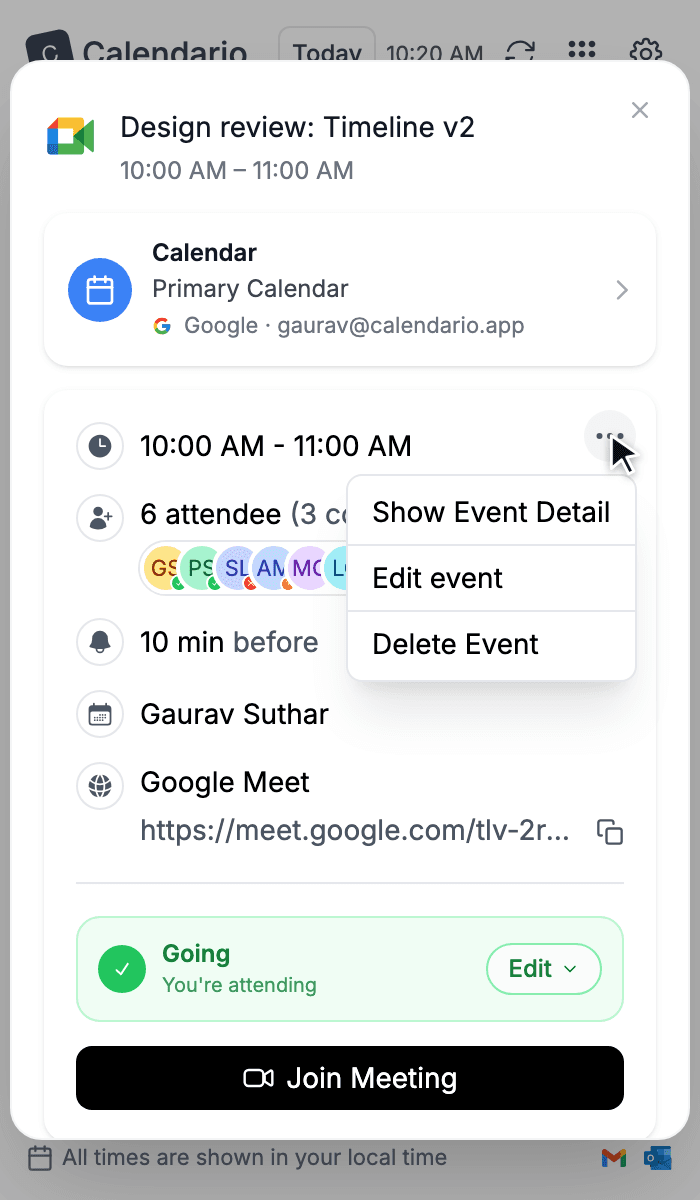
⋯ menu
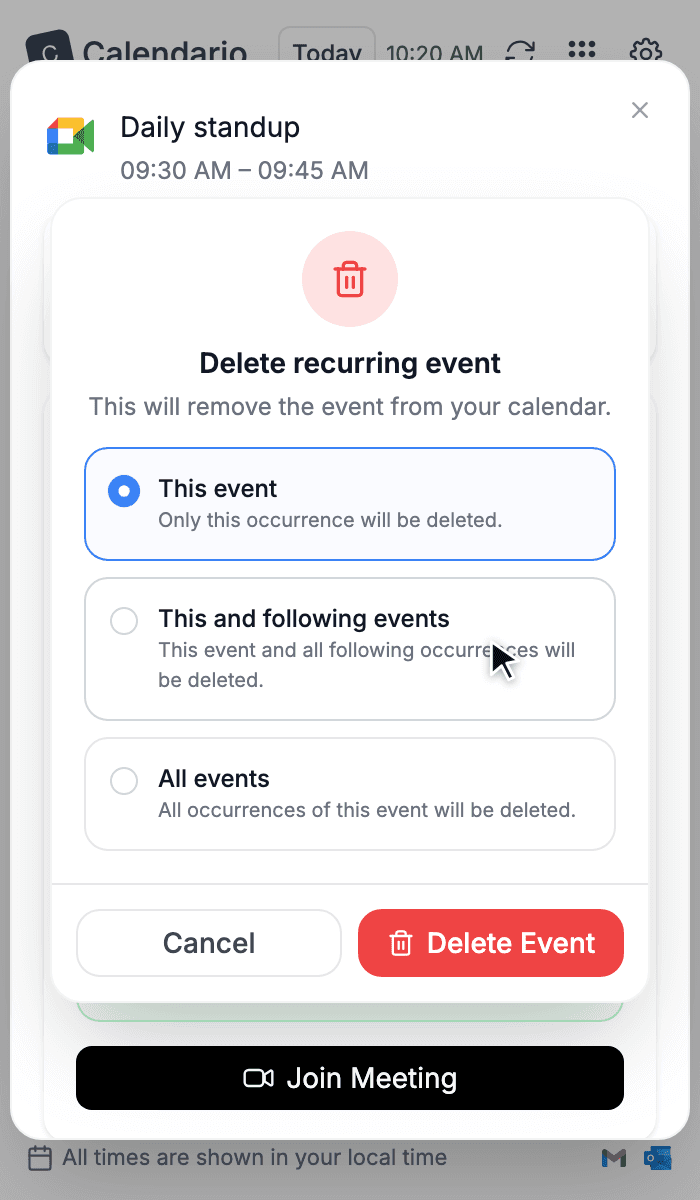
Recurring event
- This event — only this occurrence.
- This and following events — this one and every later one.
- All events — the whole series.
You can also focus an event with the arrow keys and press Delete.
Delete several events at once#
Clearing out an afternoon? Select events and delete them together.
- 1
⌘-click (Ctrl-click on Windows) each event
Selected events get a highlighted outline and a check mark, and a bar at the bottom counts them.
- 2
Press Delete (or the Delete button in the bar)
A confirmation lists exactly what will be removed.
- 3
Confirm
Press Delete. Esc clears the selection if you change your mind.
What's next#
Creating events gets a full composer with conflict warnings, recurrence, video links and guests. That's part 7.